Advanced Administration and Optimization (VE 9)
Proxmox VE 9: Advanced Administration and Optimization
The Proxmox VE 9: Advanced Administration and Optimization labs continue from Setup and Management. You'll import virtual machines from VMware ESXi, Microsoft Hyper-V, and Oracle VirtualBox. You'll manage Proxmox VE through its API, deploy OCI containers, and build Ceph distributed storage. Other labs cover custom roles and API tokens, hookscripts, monitoring and alerts, Cloud-Init, data encryption, and advanced networking. A challenge lab without step-by-step guidance closes the series.
Learn more about the Proxmox Virtual Environment product, you may refer to their official website: https://www.proxmox.com/en/proxmox-virtual-environment/overview
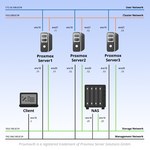
All NETLAB+ supported Proxmox VE 9: Advanced Administration and Optimization labs use the Proxmox VE 9: Advanced Administration and Optimization Pod.
Supported Labs
| Lab Number | Title |
|---|---|
| 1A | Importing Virtual Machines From VMware ESXi |
| 1B | Importing Virtual Machines From Microsoft Hyper-V |
| 1C | Importing Virtual Machines From Oracle VirtualBox |
| 2 | Advanced User Management |
| 3 | Management Using the API Interface |
| 4A | Creating Non-Linux VMs |
| 4B | OCI Containers |
| 5 | Hookscripts and Snippets |
| 6 | Exploring Configuration Files |
| 7A | Advanced Monitoring |
| 7B | Advanced Alerts |
| 8 | Virtual Machine and Container Monitoring |
| 9A | Virtual Machine and Container Viewing With noVNC and xterm.js |
| 9B | Virtual Machine and Container Viewing With SPICE |
| 10 | Cloud-Init Configuration |
| 11 | Data Encryption |
| 12 | Advanced Networking |
| 13 | Ceph and Distributed Storage |
| 14 | Challenge Lab |
Enabling the Labs
To enable the labs in NETLAB+, install the Proxmox VE 9: Advanced Administration and Optimization course using the Course Manager. See the Course Manager section of the NETLAB+ VE Administrator Guide for details.
Using the Labs
Always select the correct lab exercise for the lab being performed. Students or teams should schedule the correct lab exercise from the catalog. NETLAB+ will only show those labs for which the required pod type is available. A lab that works on different pod types may appear more than once if your system is so equipped. Instructors should select the correct lab from the Exercise tab during instructor-led lab reservations. This can be done as many times as needed during the reservation.