A+ v5
A+ v5
The A+ certification has been long recognized as the industry standard for anyone interested in establishing a career in IT. The certification prepares individuals to take on both technical support and IT operational roles. Learners will develop an understanding of a broad range of topics including networking, operating systems, security and mobile devices.
In loving memory of Brian Crump. We honor his commitment to advancing IT education and his enduring contribution to the success of countless learners.
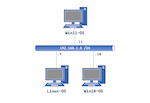
The A+ v5 labs are supported using the A+ v5 Pod.
A+ v5 Supported Labs
| Lab | Title | CompTIA A+ (220-1201) Exam Objectives | CompTIA A+ (220-1202) Exam Objectives |
|---|---|---|---|
| 01A | Examining PC Hardware | 3.5: Given a scenario, install and configure motherboards, central processing units (CPUs), and add-on cards 5.2: Given a scenario, troubleshoot motherboards, RAM, CPUs, and power. " | 1.3: Compare and contrast basic features of Microsoft Windows editions. 3.1: Given a scenario, troubleshoot common Windows OS issues " |
| 01B | Examining PC Hardware | 3.5: Given a scenario, install and configure motherboards, central processing units (CPUs), and add-on cards. 5.2: Given a scenario, troubleshoot motherboards, RAM, CPUs, and power. 5.3: Given a scenario, troubleshoot video, projector, and display issues | 1.3: Compare and contrast basic features of Microsoft Windows editions. 1.4: Given a scenario, use Microsoft Windows operating system features and tools. 1.5: Given a scenario, use the appropriate Microsoft command-line tools. 4.1: Given a scenario, implement best practices associated with documentation and support systems information management. |
| 02 | Windows Management and Administrative Tools | 5.1: Given a scenario, troubleshoot motherboards, RAM, CPUs, and power. | 1.3: Compare and contrast basic features of Microsoft Windows editions. 1.4: Given a scenario, use Microsoft Windows operating system features and tools. 1.6: Given a scenario, configure Microsoft Windows settings. 4.1: Given a scenario, implement best practices associated with documentation and support systems information management. 4.8: Explain the basics of scripting. |
| 03 | Windows Customizations | 3.5: Given a scenario, install and configure motherboards, central processing units (CPUs), and add-on cards. 5.3: Given a scenario, troubleshoot video, projector, and display issues. | 1.3: Compare and contrast basic features of Microsoft Windows editions. 1.6: Given a scenario, configure Microsoft Windows settings. |
| 04 | Windows Control Panel | 1.3: Compare and contrast basic features of Microsoft Windows editions. 1.6: Given a scenario, configure Microsoft Windows settings. 2.1: Summarize various security measures and their purposes. 2.2: Given a scenario, configure and apply basic Microsoft Windows OS security settings. 3.4: Given a scenario, troubleshoot common personal computer (PC) security issues. | |
| 05 | Command Line - Windows and Linux | 5.5: Given a scenario, troubleshoot network issues. | 1.3: Compare and contrast basic features of Microsoft Windows editions. 1.5: Given a scenario, use the appropriate Microsoft command-line tools. 1.9: Identify common features and tools of the Linux client/desktop operating system. 2.7: Given a scenario, apply workstation security options and hardening techniques. |
| 06 | Windows Network Settings | 2.3: Summarize services provided by networked hosts. 2.4: Explain common network configuration concepts. 2.6: Given a scenario, configure basic wired/wireless small office/home office (SOHO) networks. 5.5: Given a scenario, troubleshoot network issues. | 1.3: Compare and contrast basic features of Microsoft Windows editions. 1.6: Given a scenario, configure Microsoft Windows settings. 1.7: Given a scenario, configure Microsoft Windows networking features on a client/desktop. 2.2: Given a scenario, configure and apply basic Microsoft Windows OS security settings. |
| 07 | Linux Network Settings | 2.4: Explain common network configuration concepts. 2.3: Summarize services provided by networked hosts. 2.6: Given a scenario, configure basic wired/wireless small office/home office (SOHO) networks. 2.7: Compare and contrast internet connection types, network types, and their characteristics. | 1.9: Identify common features and tools of the Linux client/desktop operating system. 2.7: Given a scenario, apply workstation security options and hardening techniques. 4.9: Given a scenario, use remote access technologies. |
| 08 | Windows Users and Groups | 2.7: Compare and contrast internet connection types, network types, and their characteristics. | 1.3: Compare and contrast basic features of Microsoft Windows editions. 1.6: Given a scenario, configure Microsoft Windows settings. 2.1: Summarize various security measures and their purposes. 2.2: Given a scenario, configure and apply basic Microsoft Windows OS security settings. |
| 09 | Linux Users and Groups | 1.9: Identify common features and tools of the Linux client/desktop operating system. 2.7: Given a scenario, apply workstation security options and hardening techniques. | |
| 10 | Sharing Resources - Folders | 2.4: Explain common network configuration concepts. | 1.7: Given a scenario, configure Microsoft Windows networking features on a client/desktop. |
| 11 | Sharing Resources - Printers | 3.7: Given a scenario, deploy and configure multifunction devices/printers and settings. | 1.7: Given a scenario, configure Microsoft Windows networking features on a client/desktop. |
| 12 | Installing Software | 1.9: Identify common features and tools of the Linux client/desktop operating system. 1.10: Given a scenario, install applications according to requirements. | |
| 13 | Managing Storage | 3.4: Compare and contrast storage devices. 5.2: Given a scenario, troubleshoot drive and RAID issues. | 1.4: Given a scenario, use Microsoft Windows operating system features and tools. |
| 14 | Disk Maintenance and Data Recovery | 1.4: Given a scenario, use Microsoft Windows operating system features and tools. 4.2: Given a scenario, apply change management procedures. 4.3: Given a scenario, implement workstation backup and recovery methods. | |
| 15 | Remote Access | 2.1: Compare and contrast Transmission Control Protocol (TCP) and User Datagram Protocol (UDP) ports, protocols, and their purposes. 2.4: Explain common network configuration concepts. | 1.4: Given a scenario, use Microsoft Windows operating system features and tools. 4.9: Given a scenario, use remote access technologies. |
| 16 | Troubleshooting Tools in Windows | 5.1: Given a scenario, troubleshoot motherboards, RAM, CPUs, and power. | 1.4: Given a scenario, use Microsoft Windows operating system features and tools. 3.1: Given a scenario, troubleshoot common Windows OS issues. |
| 17 | Security and Privacy | 3.5: Given a scenario, install and configure motherboards, central processing units (CPUs), and add-on cards. | 2.1: Summarize various security measures and their purposes. 2.2: Given a scenario, configure and apply basic Microsoft Windows OS security settings. 2.4: Summarize types of malware and tools/methods for detection, removal, and prevention. |
| 18 | Deploy a Virtual Machine with Hyper-V | 4.1: Explain virtualization concepts. | 1.2: Given a scenario, perform OS installations and upgrades in a diverse environment. 1.4: Given a scenario, use Microsoft Windows operating system features and tools. |
| 19 | Configuring Security on SOHO Networks | 4.1: Explain virtualization concepts. 2.6: Given a scenario, configure basic wired/wireless small office/home office (SOHO) networks. | 2.10: Given a scenario, apply security settings on SOHO wireless and wired networks. |
| 20 | Writing Basic Scripts | 4.8: Explain the basics of scripting. |
Enabling the Labs
To enable the A+ v5 labs, install the NDG A+ - v5 course using the Course Manager. See the Course Manager section of the NETLAB+ VE Admin Guide for details. The course content will then be available to be added to classes.