NETLAB+ VE Customers: Please refer to the NETLAB+ VE documentation page.
NETLAB+ integrates with 3rd party virtualization products to provide powerful and cost effective remote PC support. The NETLAB+ documentation library includes several guides with extensive detail on the implementation of virtualization with your NETLAB+ system.
VMware Inc. provides cutting-edge virtualization technology and resources to academic institutions for little or no charge. Academic licenses for VMware ESXi and vCenter Server may be used for your NETLAB+ infrastructure. The procedure for obtaining licenses for this purpose will vary, depending on your participation in the VMware Academic Program and/or the VMware IT Academy Program. For guidance on navigating the different licensing options that may be available to your organization, please refer to the VMware Product Licensing Through VMware Academic Subscription (VMAS) Chart.
1Please use the NDG Optimized VMware vCenter Server Appliance, OVA available from CSSIA, details below.
2NETLAB+ functionality is limited with these products/versions.
VMware ESXi 5.0 on physical host servers and vCenter 5.0 for NETLAB+ VM management are not recommended or supported due to several known issues. VMware ESXi 5.0 and vCenter 5.0 are supported as virtual machines running in NDG ICM 5 pods; the physical host servers that host ICM 5 pods must run ESXi 5.1 (recommended) or ESXi 4.1 U2.
Only VMware ESXi is supported. VMware ESX is not supported.
VMware ESXi 4.01 is the last version that can be used with NETLAB+ as a standalone server (i.e. without vCenter management). ESXi 5.1 and ESXi 4.1 require a vCenter implementation. After December 31, 2013, only configurations managed by VMware vCenter will be supported by NETLAB+.
The following table shows the current recommended specifications for ESXi host servers used to host virtual machines in NETLAB+ pods.
Please check the VMware Compatibility Guide to verify that all server hardware components are compatible with the version of VMware ESXi that you wish to use.
Specification Last Updated: February 25, 2019
| Components | Recommended Minimum / Features Dell R630 |
Recommended Minimum / Features SuperMicro 1028U-TR4+ |
|---|---|---|
| Server Model | Dell R630 | SuperMicro 1028U-TR4+ |
| Chassis Hard Drive Configuration1 | 10 x 2.5" HDDs | 10 x 2.5" HDDs |
| Operating System | Specify NO operating system on order. | Specify NO operating system on order. |
| Hypervisor (installed by you)2 | VMware ESXi 6.0 (supported) VMware ESXi 5.1/5.5 (deprecated) |
VMware ESXi 6.0 (supported) VMware ESXi 5.1/5.5 (deprecated) |
| Physical CPUs (Minimum Host Server) Physical CPUs (High Performance Host Server) |
Two (2) x Intel Xeon E5-2630 v4 10C/20T Two (2) x Intel Xeon E5-2683 v4 16C/32T |
Two (2) x Intel Xeon E5-2630 v4 10C/20T Two (2) x Intel Xeon E5-2683 v4 16C/32T |
| Memory (Minimum Host Server) Memory (High Performance Host Server) |
384GB RDIMM (12x32GB) 512GB RDIMM (16x32GB) |
384GB RDIMM (12x32GB) 512GB RDIMM (16x32GB) |
| Hardware Assisted Virtualization Support | Intel-VT | Intel-VT |
| Accelerated Encryption Instruction Set | AES-NI | AES-NI |
| BIOS Setting | Performance BIOS Setting | Performance BIOS Setting |
| RAID | RAID 5 for PERC H730P 2GB NV Cache | AOC-S3108L-H8iR & 2x CBL-SAST-0593 |
| HDD | 8x 600GB SAS 10K 2.5"6Gbps | 8x 600GB SAS 10K 2.5" 6Gbps |
| Power Supply | Dual, 1100W Redundant PS | Dual 750W |
| Power Cords | 2x NEMA 5-15P to C13 | 2x CBL-0160L 5-15P to C13 |
| Rails | ReadyRails Sliding Rails | MCP-290-00062-0N |
| Bezel | Bezel 10/24 | No Bezel |
| 1G Network | Broadcom 5720QP(4ports) 1GB daughter card | Onboard 4x 1GB AOC-UR-i4G |
| 10G Network3 | Intel X520 DP (SFP+) or Intel X540 DP (10GBASE-T) | AOC-STGN-i2S (SFP+) or AOC-STG-i2T (10GBASE-T) |
| Internal SD (Opt) | Internal SD Module with 1x 16GB SD Card | N/A |
12 HDD slots on the chassis will not be used. These can be used with optional SSDs in the future.
2Install VMware ESXi to Internal SD or Internal USB port using 8GB or larger USB Flash Drive.
3For 10Gbps support, choose either SFP+ or BASE-T depending on the 10Gbps network you choose.
See the specifications for the older, previously recommended server models, Dell R710/R720.
If you are storing virtual machines on the ESXi host server's internal Direct Attached Storage, the type of RAID controller and RAID array configuration will have a very significant impact on performance, particularly as the number of active VMs increase. The amount of cache on the RAID controller is very important. A controller with no cache is likely to perform poorly under load and will significantly decrease the amount of active VMs you can run on the server. Keep in mind that many controllers will disable the disk's onboard cache, which is designed for standalone usage.
NDG performs all testing on servers with Internal Direct Attached Storage (i.e. RAID arrays and RAID controllers directly attached to each ESXi host server). This is the configuration that most academic institutions are likely to find affordable and adopt.
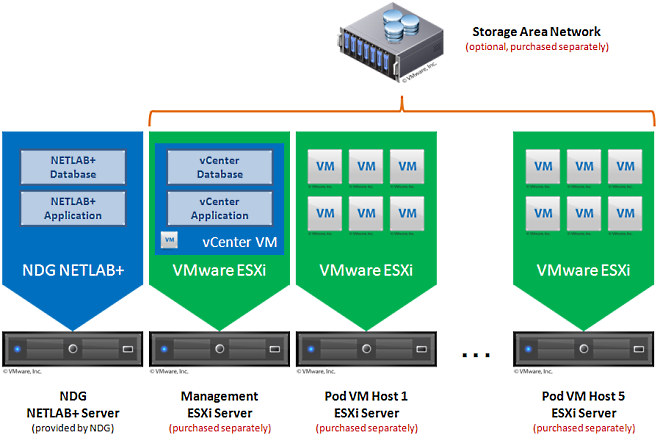
A Storage Area Network (SAN) is a dedicated network that provides access to consolidated, block level data storage, which can be used for disk storage in a VMware vSphere environment.
Currently NDG does not provide benchmarks, guidance or troubleshooting for SAN configurations. Our documentation may show an optional SAN in the environment, however this is not a recommendation or requirement to deploy a SAN.
NDG benchmarks and capacity planning guidance do not account for the additional latencies introduced by SAN.
The tables below show the minimum server configurations recommended for various NDG supported courseware. These configurations are based on the Dell R630 specifications above and vary only by memory and active VMs supported. You do not need separate host servers for each curriculum and may run VMs for Cisco, General IT, and Cybersecurity on the same servers. We recommend no more than 40 active VMs per server with 128GB of memory. Always configure NETLAB+ Proactive Resource Awareness to limit the number of scheduled VMs at any one given time and to prevent oversubscription of the host resources.
| Server Role/Courses | Processor(s) | Memory | Cores/Threads | Active VMs | Storage | Active Pod to Host Ratio |
|---|---|---|---|---|---|---|
| Cisco Only Setup | 2x Intel Xeon E5-2630 v3 | 64GB | 8/16 | 24 | amounts vary1 | 8 Map Pods to 1 |
| VMware vSphere ICM 4.1 | 2x Intel Xeon E5-2630 v3 | 72GB | 8/16 | 40 | 40 GB | 8 VMware vSphere ICM Pods to 1 |
| VMware vSphere ICM 5.0 | 2x Intel Xeon E5-2630 v3 | 128GB | 8/16 | 40 | 20 GB | 8 VMware vSphere ICM Pods to 1 |
| VMware vSphere ICM 5.1 | 2x Intel Xeon E5-2630 v3 | 128GB | 8/16 | 40 | 20 GB | 8 VMware vSphere ICM Pods to 1 |
| VMware View ICM 5.1 | 2x Intel Xeon E5-2630 v3 | 192GB | 8/16 | 40 | 20 GB | 8 VMware View ICM Pods to 12 |
| EMC ISM | 2x Intel Xeon E5-2630 v3 | 128GB | 8/16 | 48 | 8 GB | 16 ISM Pods to 1 |
| CSSIA CompTIA Security+® | 2x Intel Xeon E5-2630 v3 | 128GB | 8/16 | 40 | 28 GB (master) 15 GB (student) |
5 MSEC Pods to 1 |
| General IT / Cybersecurity | 2x Intel Xeon E5-2630 v3 | 128GB | 8/16 | 40 | amounts vary2 | amounts vary2 |
1Please refer to the topology specific information for Cisco Content.
2Please refer to the topology specific information for General IT or Cyber Security.
VMware vCenter enables you to manage the resources of multiple ESXi hosts and allows you to monitor and manage your physical and virtual infrastructure. Starting with software version 2011.R1V, NETLAB+ integrates with VMware vCenter to assist the administrator with installing, replicating and configuring virtual machine pods.
For performance reasons, a separate physical management server is recommended for vCenter.
| Server Type | Processor(s) | Memory | Cores/Threads |
|---|---|---|---|
| Dell R630 | 2x Intel Xeon E5-2630 v4 | 128GB RDIMM (4x32GB) | 10/20 |
| SuperMicro 1028U-TR4+ | 2x Intel Xeon E5-2630 v4 | 128GB RDIMM (4x32GB) | 10/20 |
Please adhere to the VMware's requirements and best practices. vCenter requires at
least two CPU cores. Unsatisfactory results have been observed with older / single
core hardware that did not meet VMware's minimum specifications.
NDG does not support configurations where a virtualized vCenter server instance is running
on a heavily loaded ESXi host and/or an ESXi host that is also used to host virtual
machines for NETLAB+ pods (with the exception of HA failover of the management server).
These configurations have exhibited poor performance and API timeouts that can adversely
affect NETLAB+ operation.
As of vSphere 5.1, NDG only supports the VMware vCenter Appliance. The physical server on which vCenter resides should be a dedicated "management server" to provide ample compute power. It is strongly recommended you follow our server recommendations to provide ample compute power now and in the future.
Starting with VMware ESXi 5.1, NDG strongly recommends using the NDG Optimized VMware vCenter Server Appliance. This appliance is a virtual machine that runs on ESXi 5.1. The physical server on which vCenter resides should be a dedicated "management server" to provide ample computing power. see the instructions below to request the NDG Optimized vCenter Server v5.1 Appliance OVA from CSSIA.org.
The following table lists the server memory requirements for the vCenter 6.0 Appliance, based on the number of virtual machines in the inventory.
| vCenter 6.0 Appliance Size | Virtual Machines | CPUs | RAM | Disk |
|---|---|---|---|---|
| Tiny | Up to 100 | 2 | 8GB | 120GB |
| Small | Up to 1000 | 4 | 16GB | 150GB |
| Medium (Recommended) | Up to 4000 | 8 | 24GB | 300GB |
| Large | 4000+ | 16 | 32GB | 450GB |
NDG has tested Windows and Linux as guest operating systems. Novell Netware is not currently supported. Other operating systems that are supported by VMware may work, but have not been tested by NDG. The guest operating system must support VMware tools for the mouse to work within NETLAB+.
If you are using the topologies designed to support Cisco Networking Academy® content, please review this additional information on determining the number of VMware Servers needed >
NDG offers no warranties (expressed or implied) or performance guarantees (current or future) for 3rd party products, including those products NDG recommends. Due to the dynamic nature of the IT industry, our recommended specifications are subject to change at any time.
NDG recommended equipment specifications are based on actual testing performed by NDG. To achieve comparable compatibility and performance, we strongly encourage you to utilize the same equipment, exactly as specified and configure the equipment as directed in our setup documentation. Choosing other hardware with similar specifications may or may not result in the same compatibility and performance. The customer is responsible for compatibility testing and performance validation of any hardware that deviates from NDG recommendations. NDG has no obligation to provide support for any hardware that deviates from our recommendations, or for configurations that deviate from our standard setup documentation.