Verify and manage email addresses
You need a verified email address to use NDG Online courses and labs. Some courses also require an address from an approved academic institution.
To confirm you own an address, NDG Online emails it a verification key to enter in NDG Online, and a link you can open instead.
How email addresses work
- You sign in with your primary email address. NDG Online has no usernames.
- A verified address stays on your account permanently and cannot be removed.
- Unverified secondary addresses are removed automatically after 7 days.
- The primary address cannot be removed, even unverified. To replace a mistyped primary address, add and verify the correct address, make it primary, and then remove the old one.
Manage your addresses
Select your name at the top right of the page, then Email Addresses. On a phone, open the menu at the top right, select Account, then the Email Addresses tab.
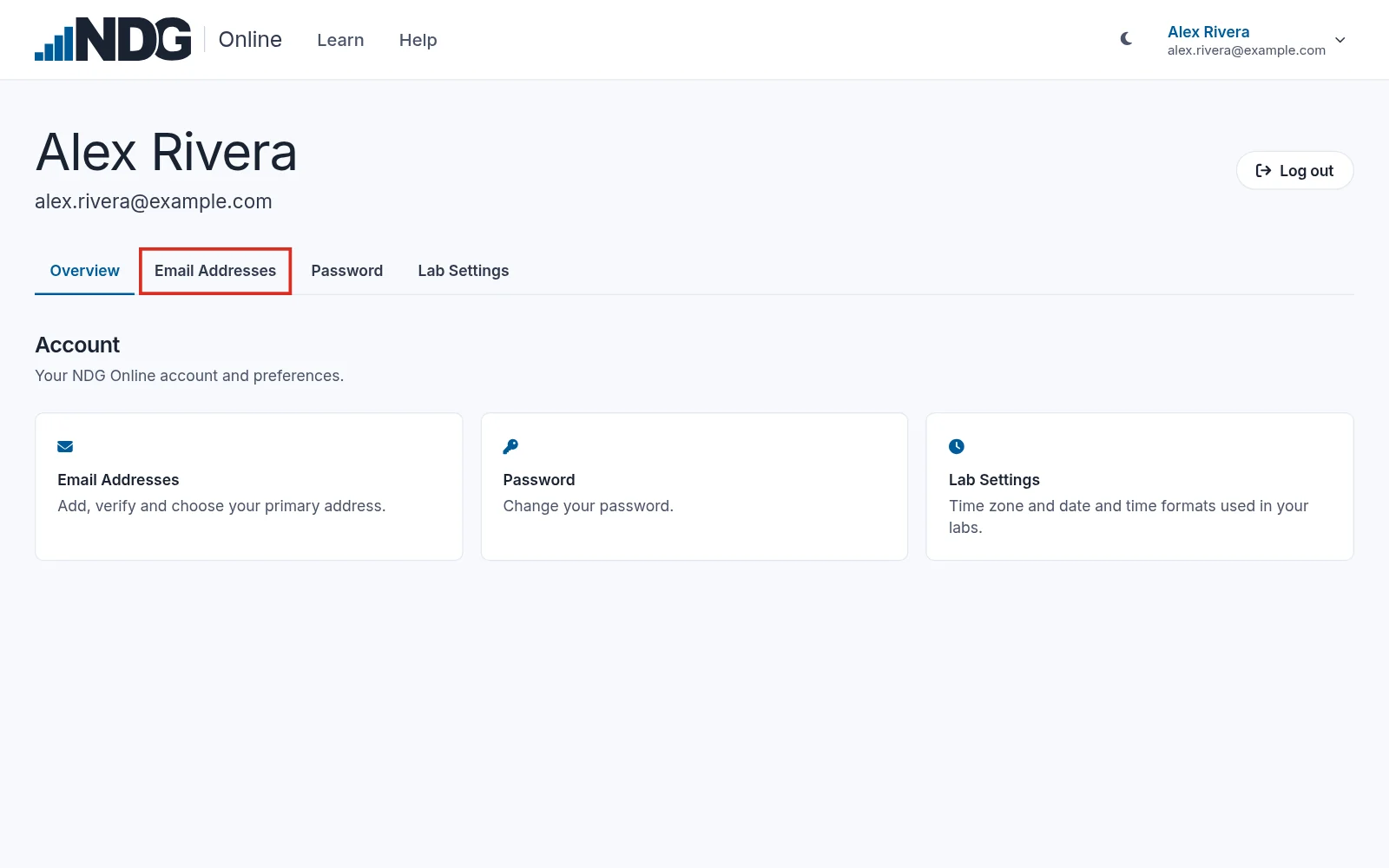
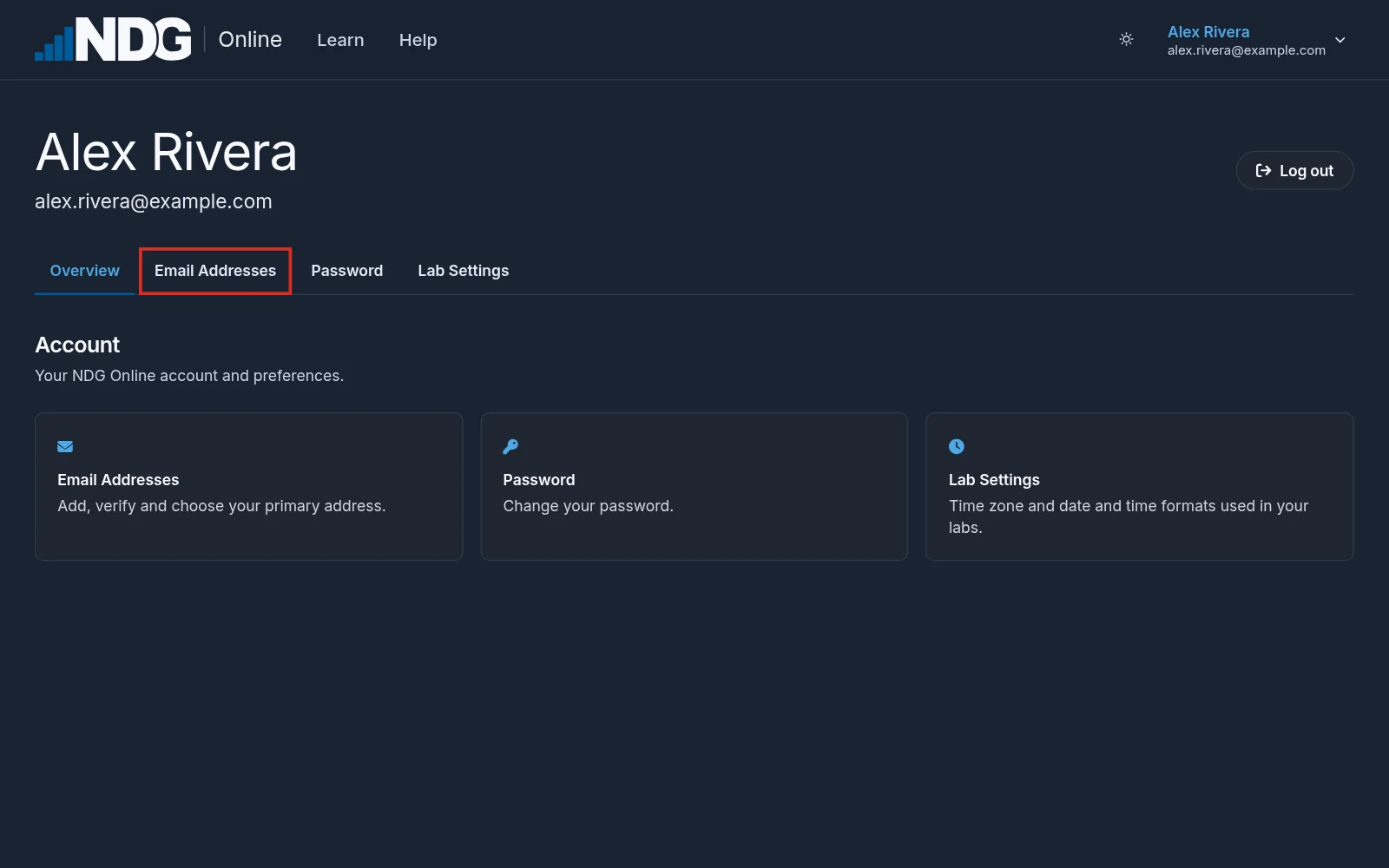
The page lists the addresses on your account. Each is marked Primary, Verified or Unverified, and Academic if it passes academic verification. To make a verified address primary, select Make primary. An unverified address has Resend, to send its key again, and a secondary one also has Remove.
Instructors: make your academic email address primary, not a free address such as Gmail, Yahoo, or Outlook, and keep the same primary address after your instructor access is approved.
Add and verify an address
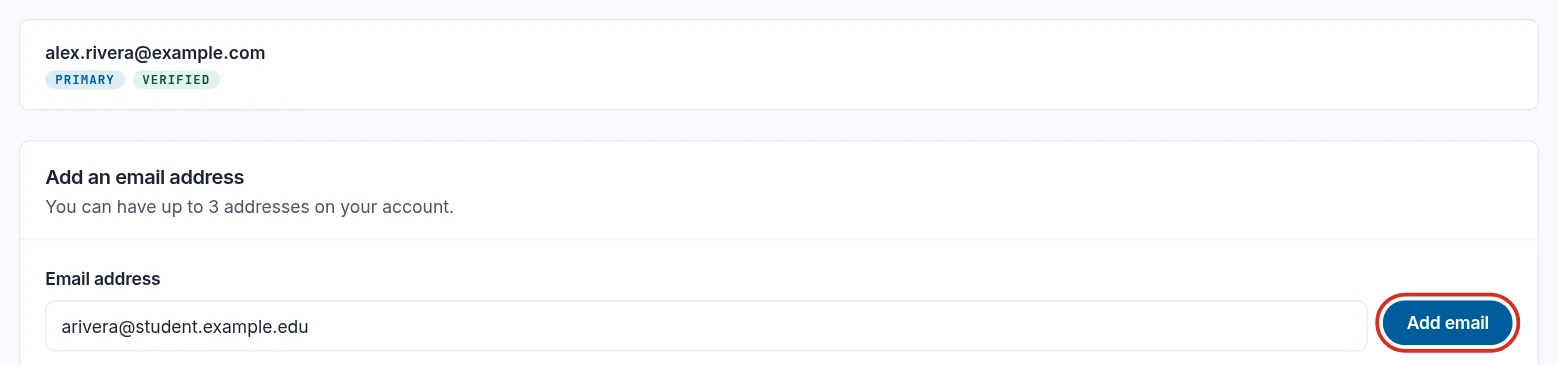
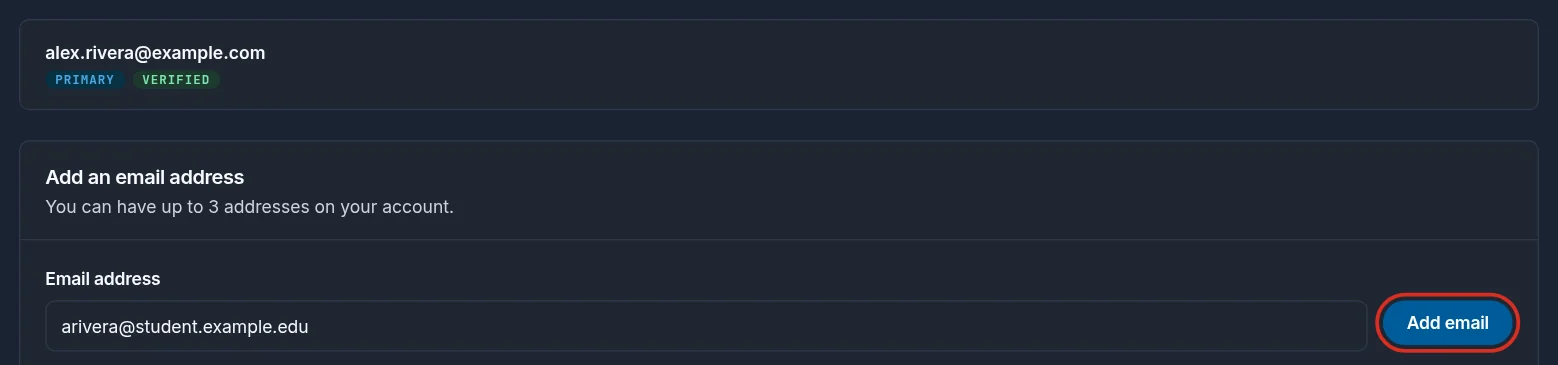
Type the address under Add an email address and select Add email. You can have up to three addresses.
Open the email from NDG Online at that address and copy the verification key. If it isn't in your inbox, check your spam or junk folder.
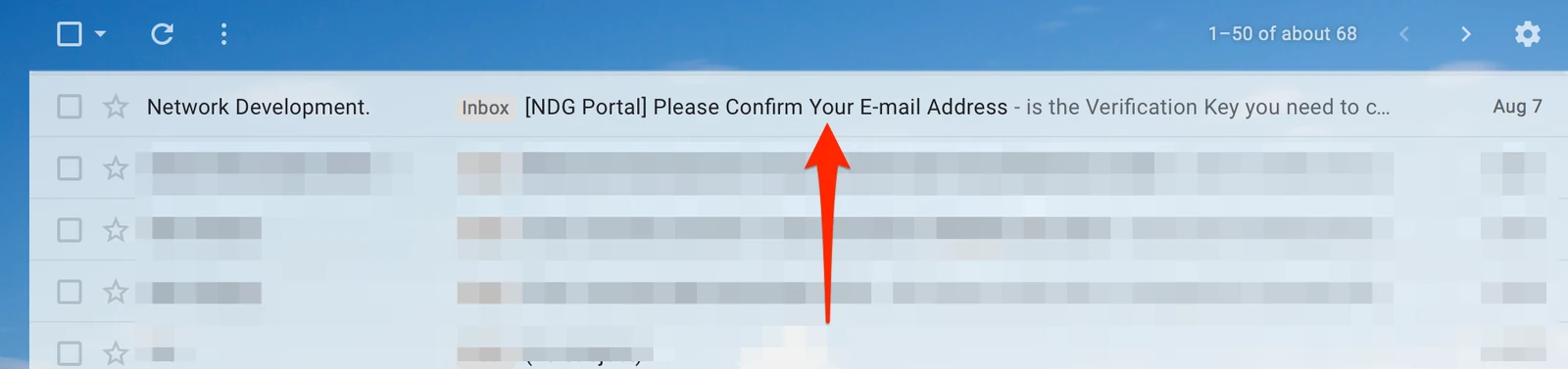
Enter the key under Verification key on the Email Addresses page and select Verify. Or open the link in the email and select Verify on the Verify your email address page.


If the verification email doesn't arrive
- The address has a typo. Right after you create your account, select Change email on Check your email and enter the right address: it replaces the mistyped one. Later, remove the address on the Email Addresses page, add the correct one, and verify that.
- The email was filtered. Check your spam or junk folder. If it isn't there, ask your email provider or IT department whether they blocked mail from NDG Online.
Academic verification
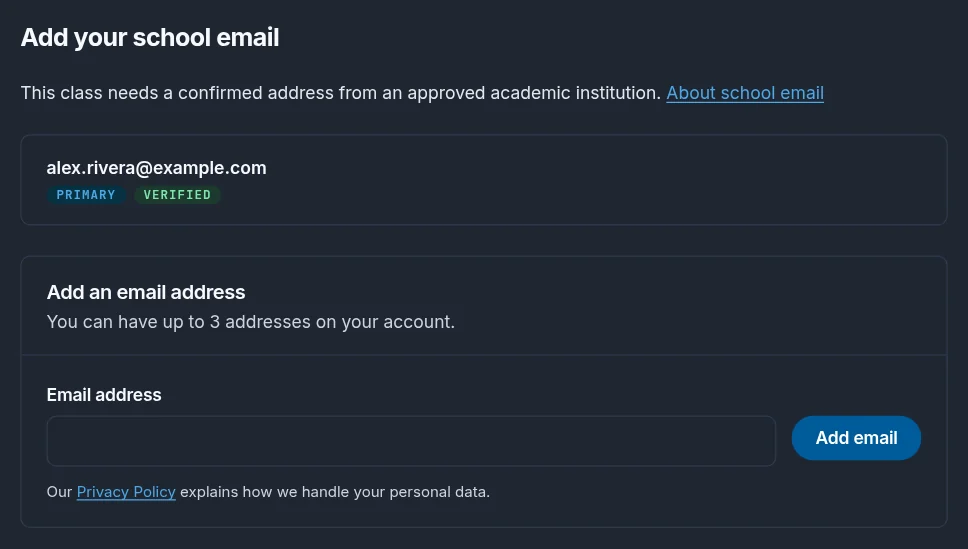
If a class needs an academic email address, enrollment stops at Add your school email until your account has a verified address from an approved school. Add and verify your school email address right there, the same way as above, and enrollment continues.
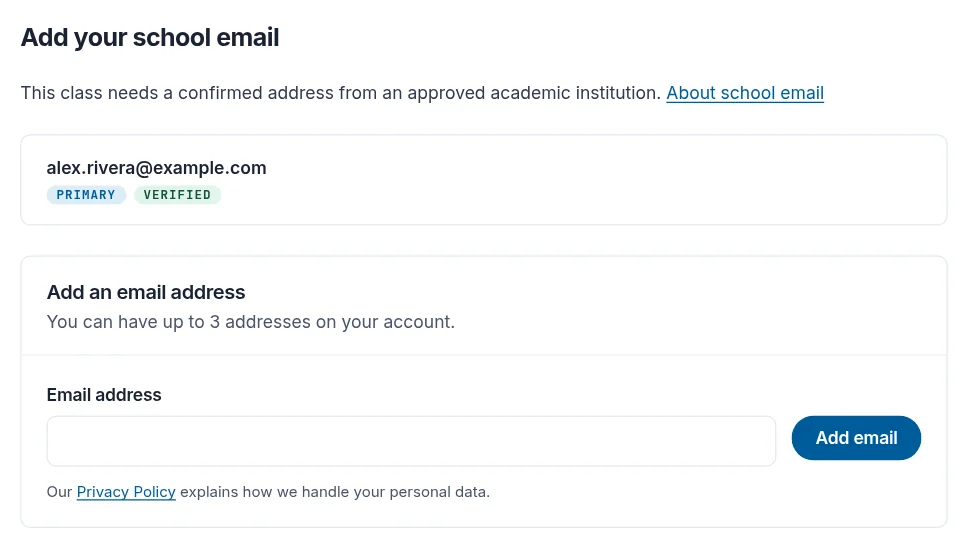
If your school doesn't give you an email address, ask your instructor. Instructors can have NDG approve other addresses for their class (see Academic verification for classes).
Still need help?
In NDG Online, select Help to ask the Help assistant or open a ticket. Taking labs in a class? Ask your instructor first.