Use lab machines in the NDG Online lab view
Labs in some classes open in the NDG Online lab view: the Content panel with the lab's instructions, a rail down the left edge, and a tab for each lab machine over its console. If your lab has Topology, Content, and Status tabs across the top instead, see Use the NDG Online lab interface.
The rail has:
- Menu: NDG Online's other pages, such as Learn and Account, and Log out. The lab view has no header at the top.
- Class: back to the class page.
- Content: shows or hides the Content panel. The search button in its header searches every section.
- Grading: the challenge and Check my work, on challenge labs only.
- Help: the Help panel, beside the lab.
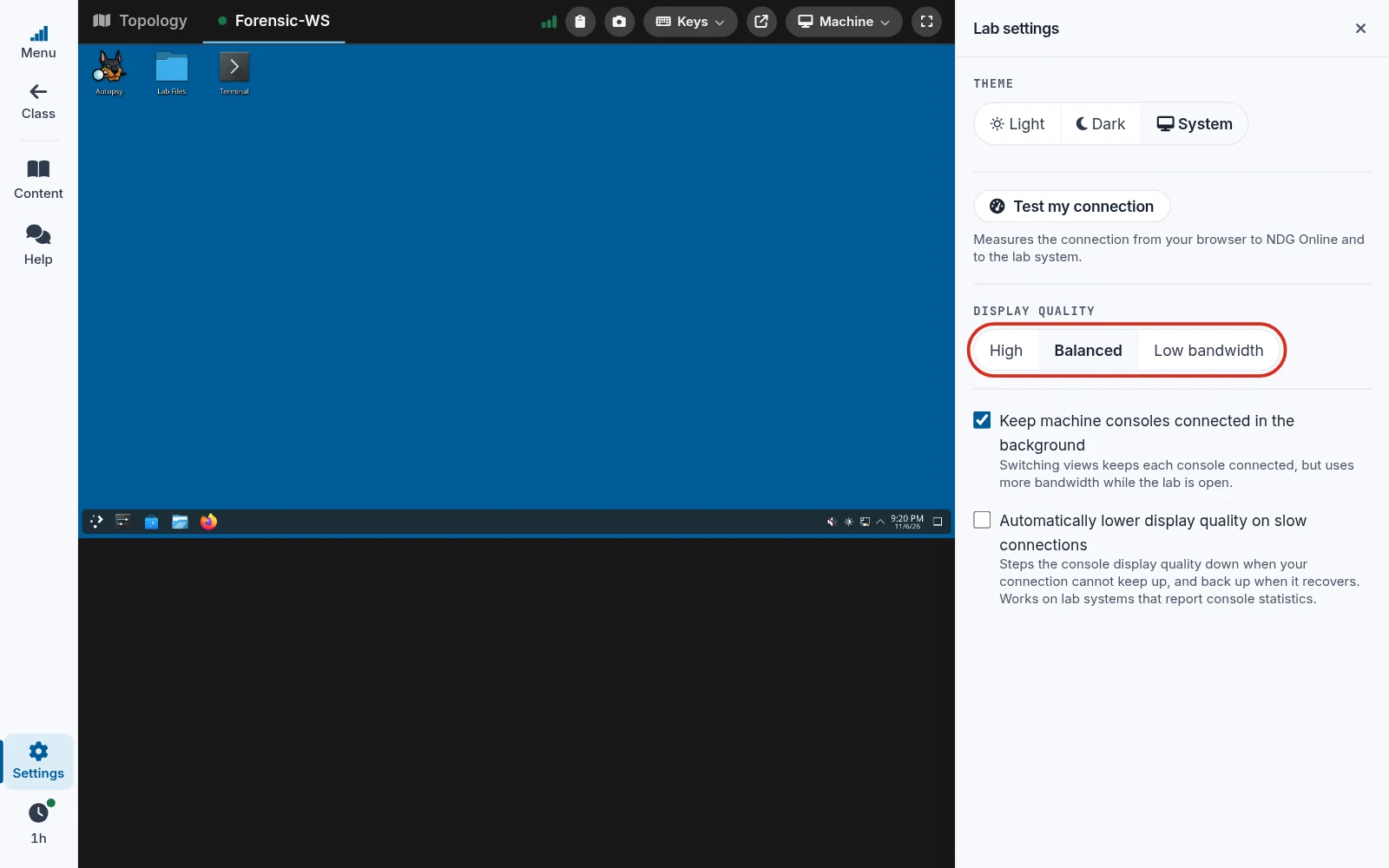
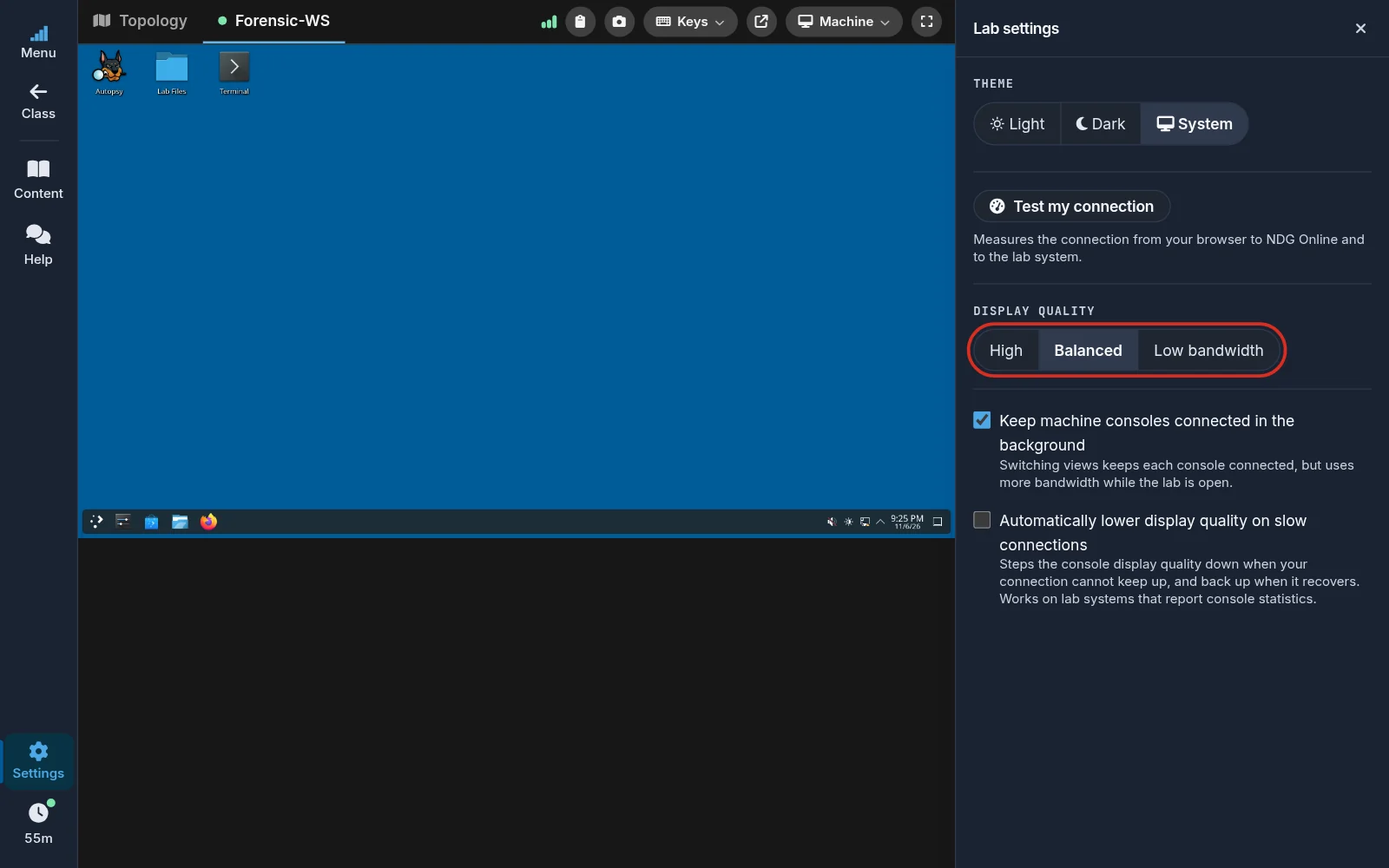
- Settings: the theme, Display quality, and the console options.
- The session, at the bottom: your time left. Select it to extend the session when you can, or to End lab session.
Open a machine
Select the machine's tab in the row over the console. The row starts with Topology, the lab's diagram and its list of machines, then has a tab for each machine. Machines that don't fit are under More.
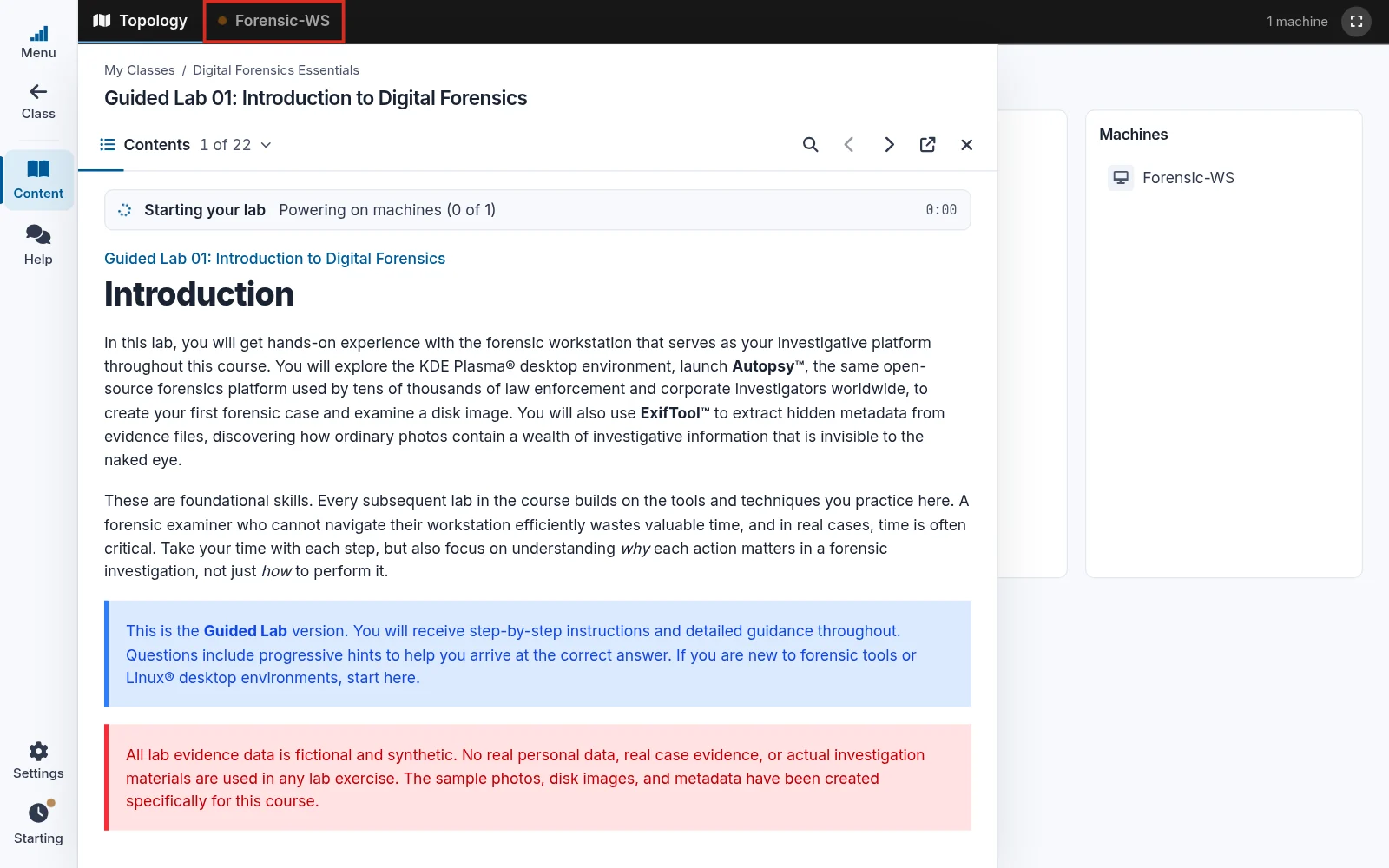
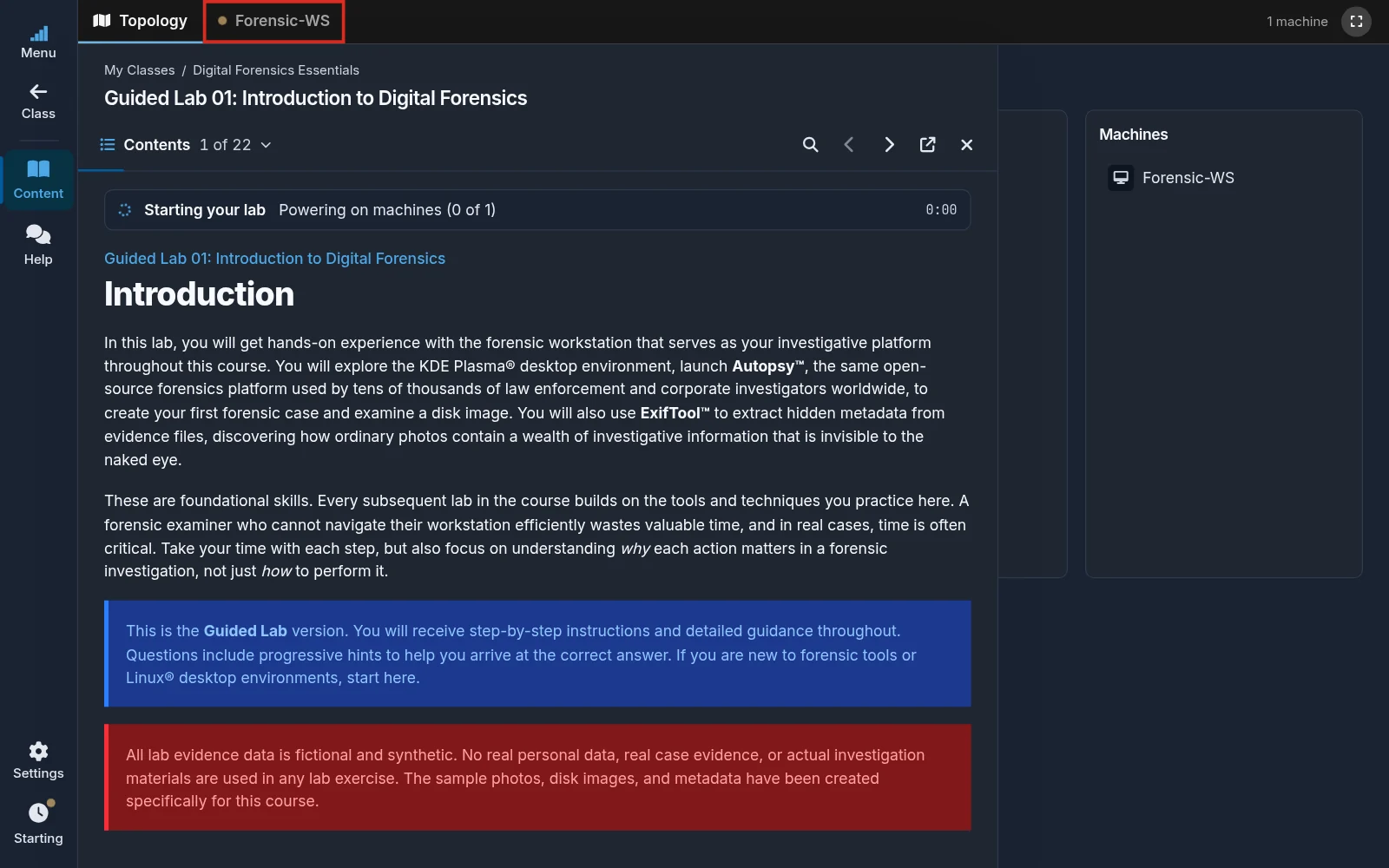
The machine's console opens. In a browser window 1640 pixels wide or more, it opens beside the Content panel. On a narrower screen it takes the panel's place: select Content to bring the panel back.
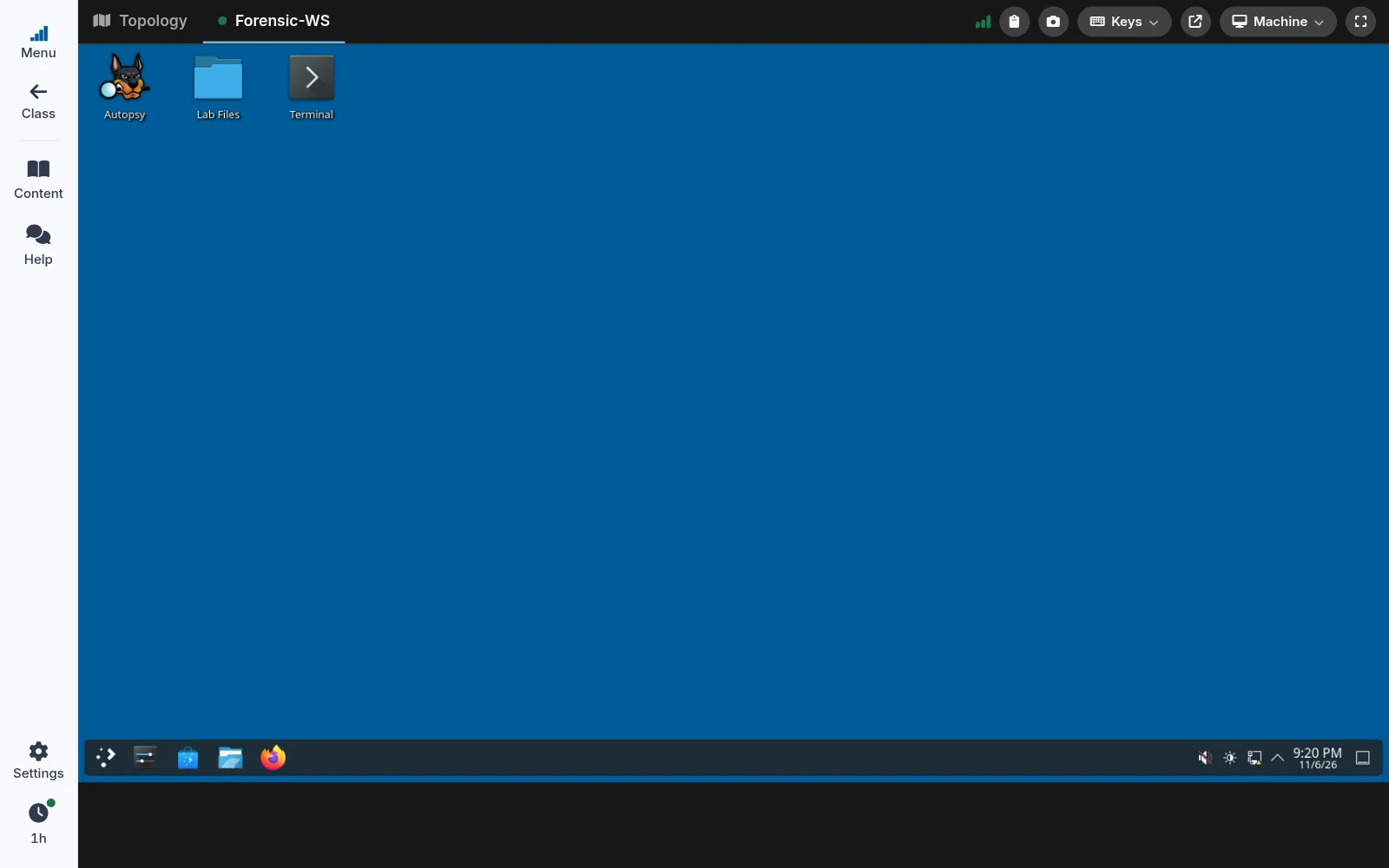
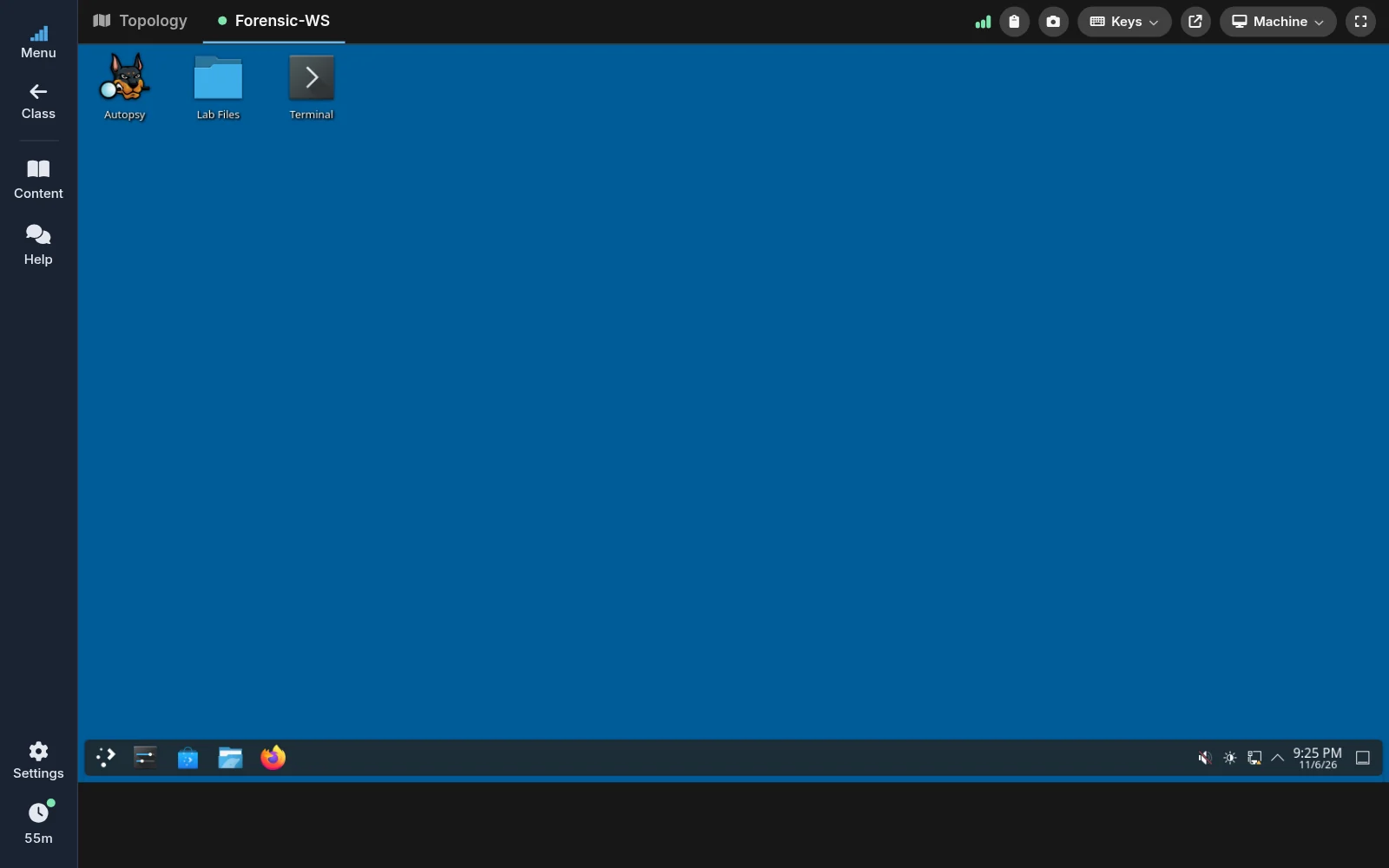
When a lab first starts, its machines take a few minutes to come up. The console shows Starting your lab environment and connects on its own when the machine is ready. If a machine is turned off, the console shows Power on instead.
Some machines open in a text terminal instead of a desktop. A terminal can show only a blinking cursor when it connects: its login or command prompt appeared before you connected. After a moment the top of the console shows Connected. Press Enter to show the prompt. Select Send Enter, or click in the terminal and press Enter, and the prompt appears.
The console toolbar
The console's tools share the row with the machine tabs. Point at a tool to see its name.
- Clipboard: copy text into or out of the machine.
- Screenshot: save a picture of the machine's screen to your lab records.
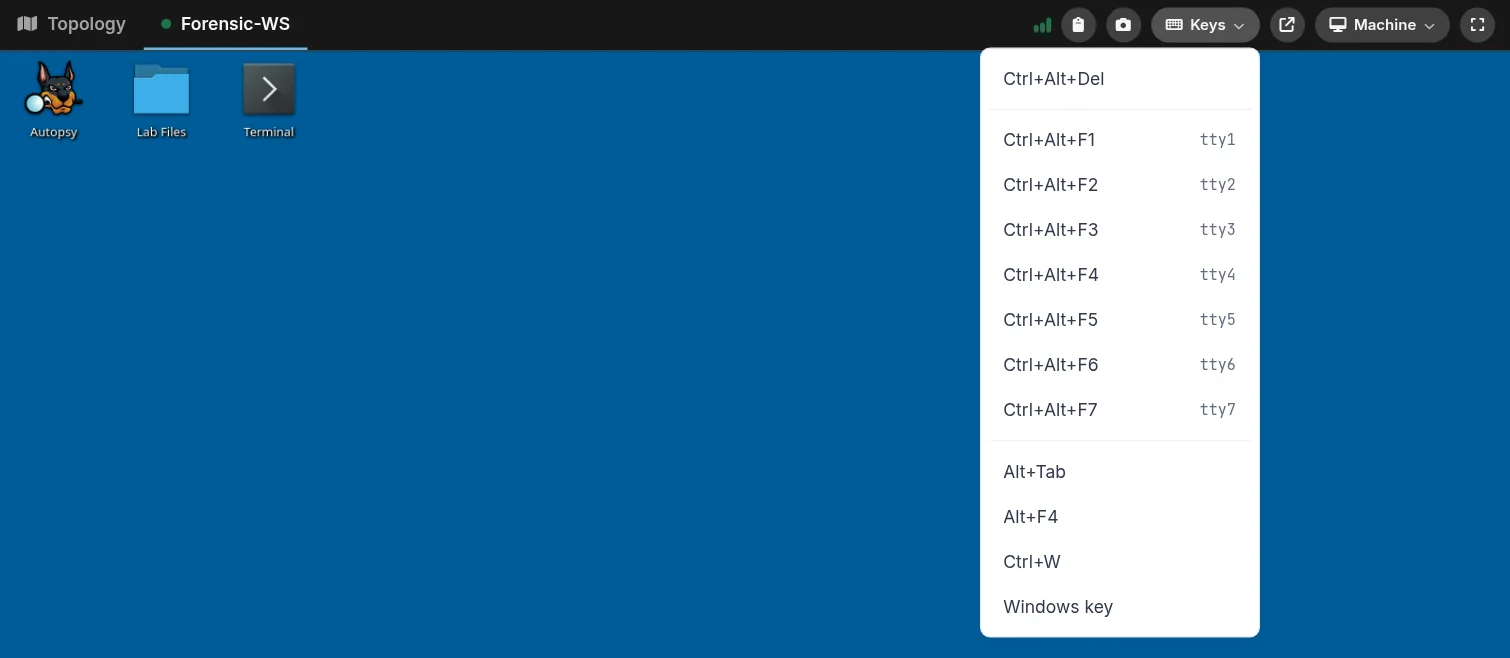
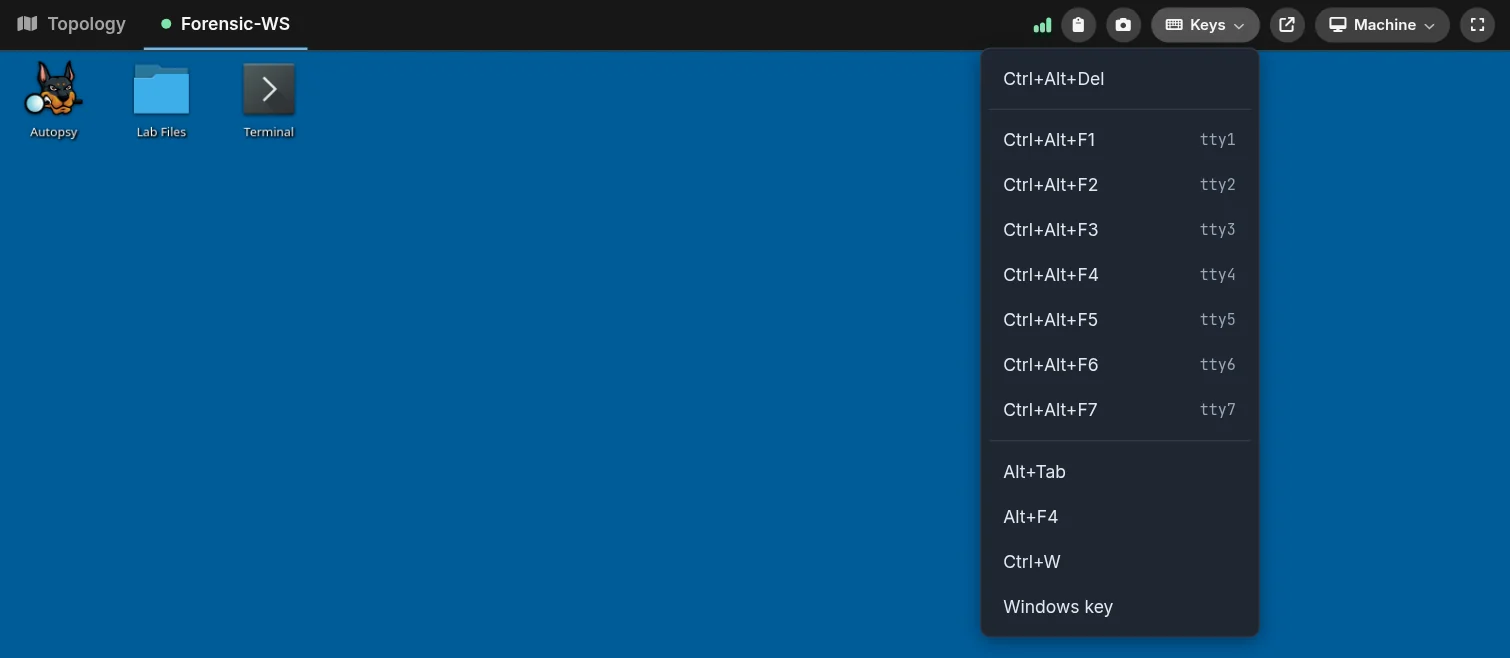
- Keys: send a key combination your computer keeps for itself, such as Ctrl+Alt+Del.
- Undock: open the console in its own window.
- Machine: reconnect, power, and reset.
- Full screen: hides the lab's other tools and fills your screen with the console. Select it again to bring them back.
The three bars at the start of the tools show your connection to the lab. Green bars mean a good connection, amber a slower one, and a single red bar a slow connection or one that can't keep up. Point at the bars to see the numbers.
Send a key combination
Your computer and browser keep some key combinations for themselves, so pressing them never reaches the machine. Select Keys and pick the combination instead:
- Ctrl+Alt+Del
- Ctrl+Alt+F1 to Ctrl+Alt+F7, which switch between Linux text consoles (tty1 to tty7)
- Alt+Tab, Alt+F4, Ctrl+W, and the Windows key
Type every other key normally. In Full screen, Chrome and Edge pass shortcuts such as Ctrl+W and Esc straight to the machine; hold Esc to leave full screen.
Display quality
Display quality is in Settings on the rail. It has three settings: High, Balanced (the default), and Low bandwidth. Low bandwidth sends a rougher picture that keeps up on a slow connection. Your choice applies to every machine and stays set in this browser.
To have NDG Online lower the quality on its own when your connection can't keep up, turn on Automatically lower display quality on slow connections in the same panel.
Reconnect, power, and reset
The Machine menu has:
- Reconnect console: reconnects a console that stopped responding.
- Power on and Power off: turn the machine on or off.
- Reset machine: returns the machine to its starting state. NDG Online asks first, because all work inside the machine is lost. Your lab instructions, checkpoint answers, and grades are not affected.


Copy and paste text
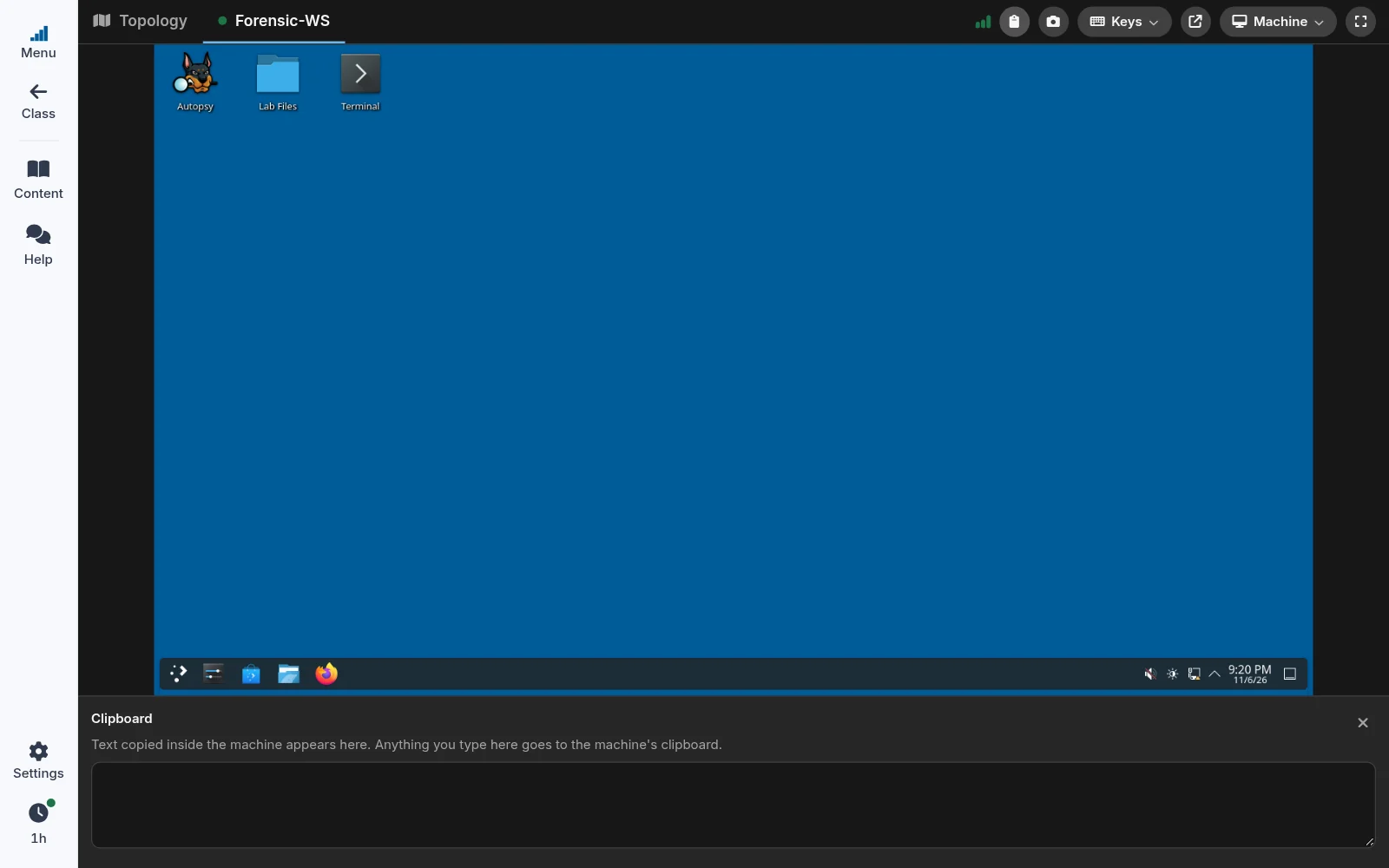
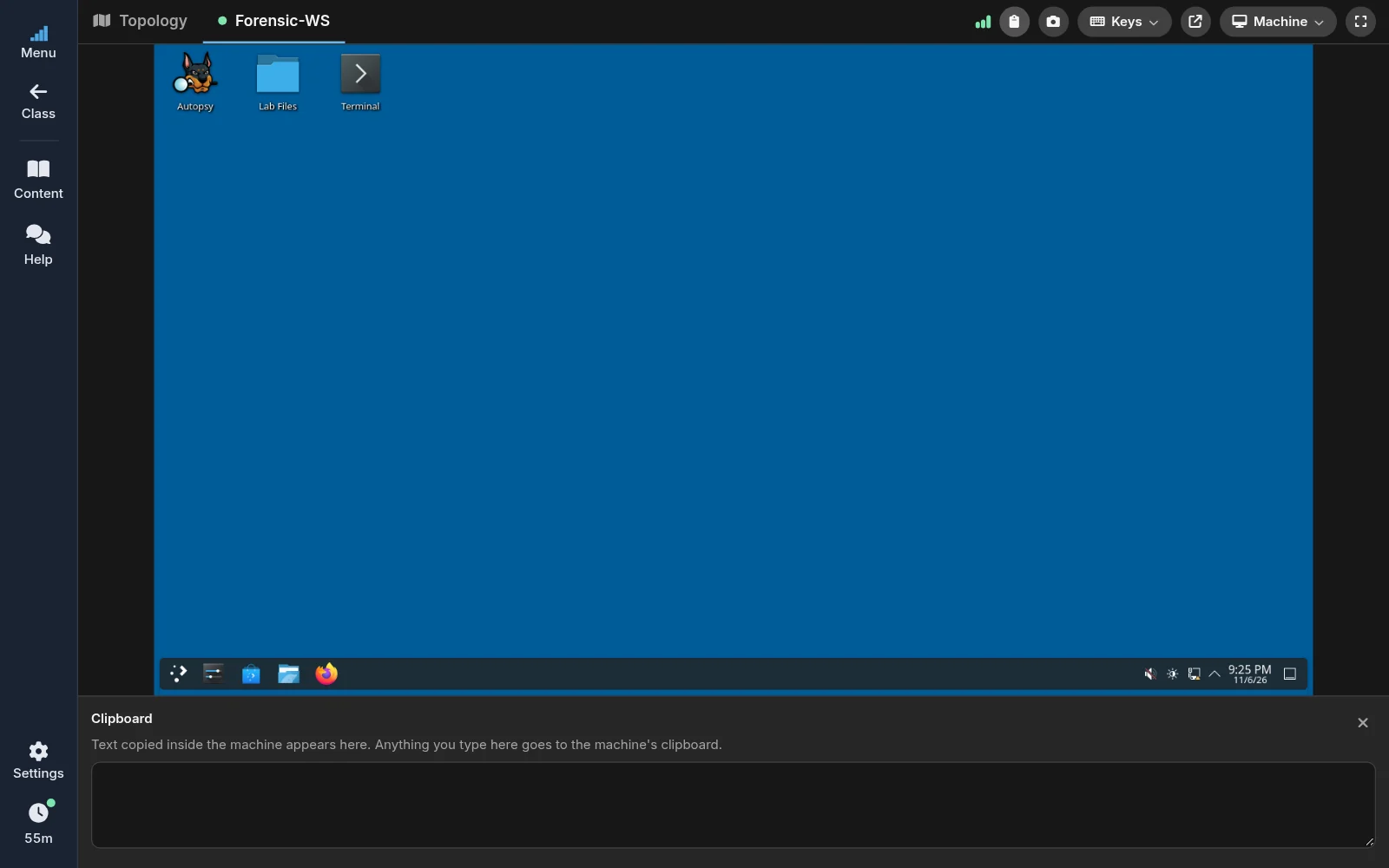
Select Clipboard to open a text box below the console (on a short screen, it opens as a window):
- Text you copy inside the machine appears in the box. Copy it from there to your computer.
- Text you type or paste into the box goes to the machine's clipboard. Paste it inside the machine as usual.
Take a screenshot
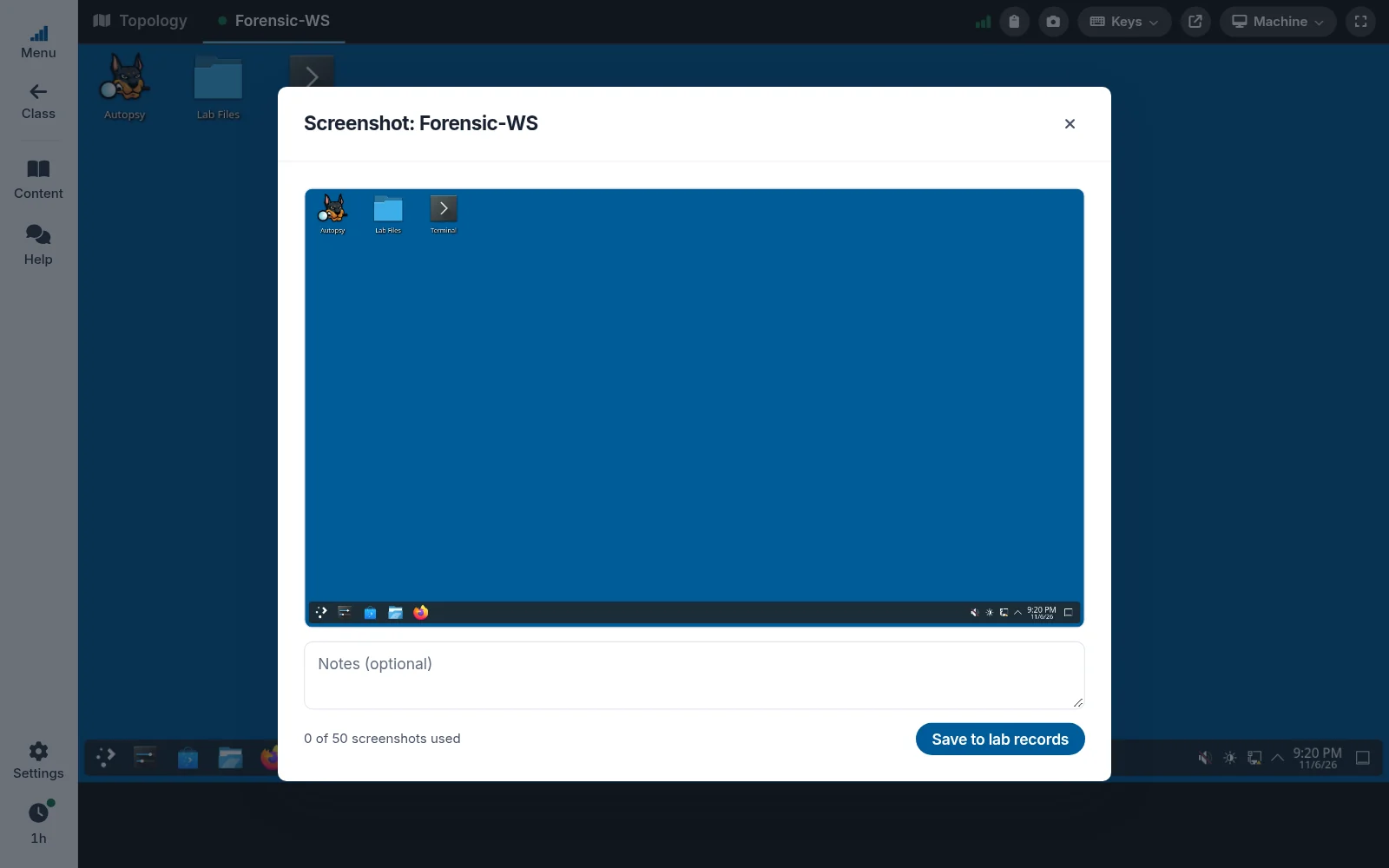
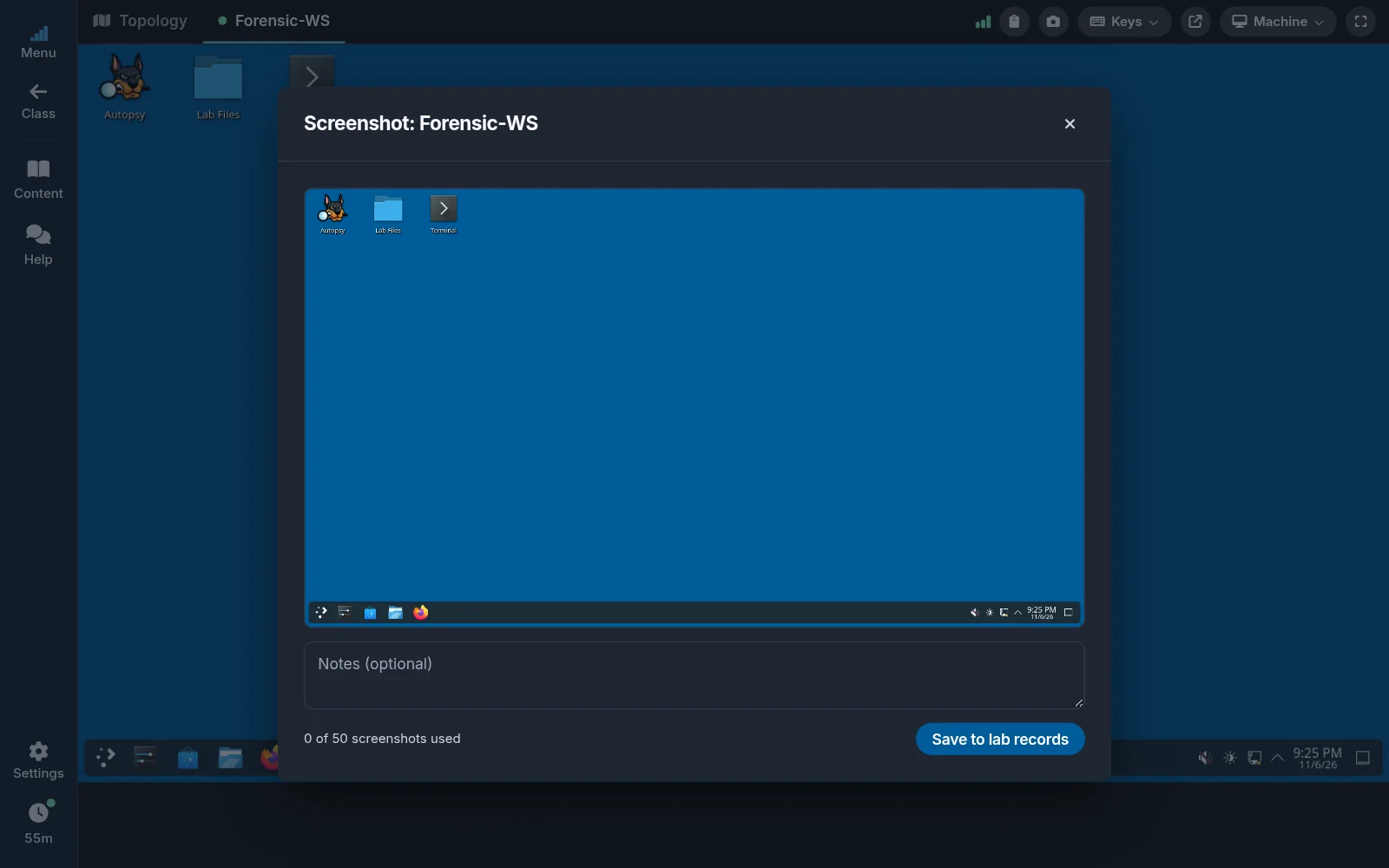
Select Screenshot to capture the machine's screen. Add notes if you like, then select Save to lab records. The window shows how many screenshots your class allows and how many you have used.
Undock and dock a console
Select Undock to open the console in its own window, for example on a second monitor next to the Content panel. Undock as many machines as you like. If nothing opens, allow pop-ups for NDG Online in your browser.
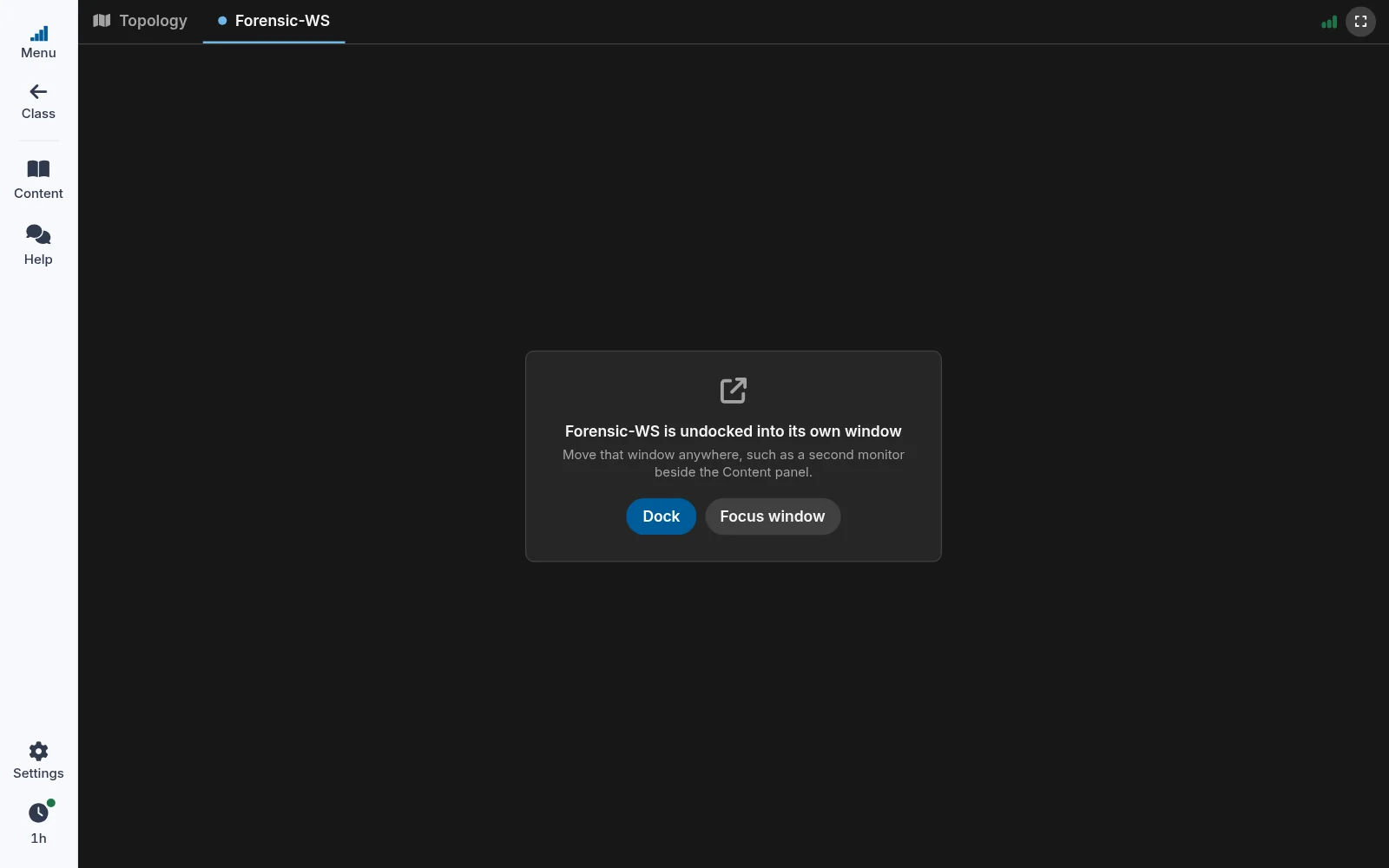
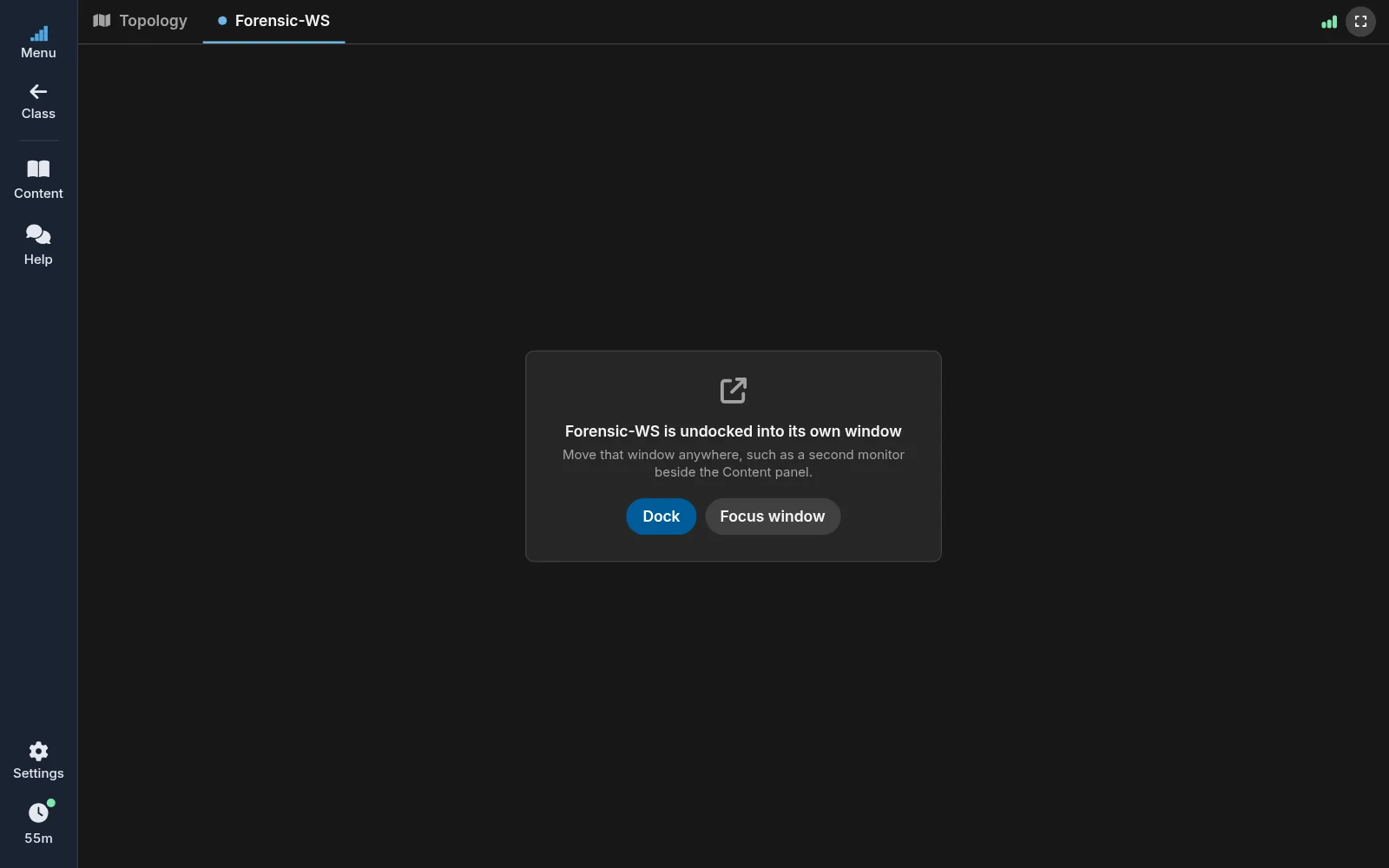
While a console is undocked, the lab page shows Dock and Focus window in its place, and the machine's tab brings its window forward. To put the console back, select Dock, use Dock in the window's toolbar, or close the window.
Machines with sound
Some machines play sound. Their toolbar has a speaker button that mutes and unmutes the machine.
- If your browser holds the sound back until you interact with the page, the button shows muted. Select it to turn the sound on.
- If your browser can't play the machine's sound, the button is unavailable and its tip says so. Try a current version of Chrome, Edge, or Firefox.


These machines have fewer tools: there is no Clipboard or Display quality, and Keys offers Ctrl+Alt+Del only.
Still need help?
In NDG Online, select Help to ask the Help assistant or open a ticket. Taking labs in a class? Ask your instructor first.