Use the NDG Online lab interface
Most labs open in the NDG Online lab view, with the Content panel beside a tab for each lab machine: see Use lab machines in the NDG Online lab view. This article covers labs in the classes that still open with Topology, Content, and Status tabs across the top.
Open a lab
Your classes are listed on My Classes: select Learn in the header at the top of the page. Select a class's name to open the class.
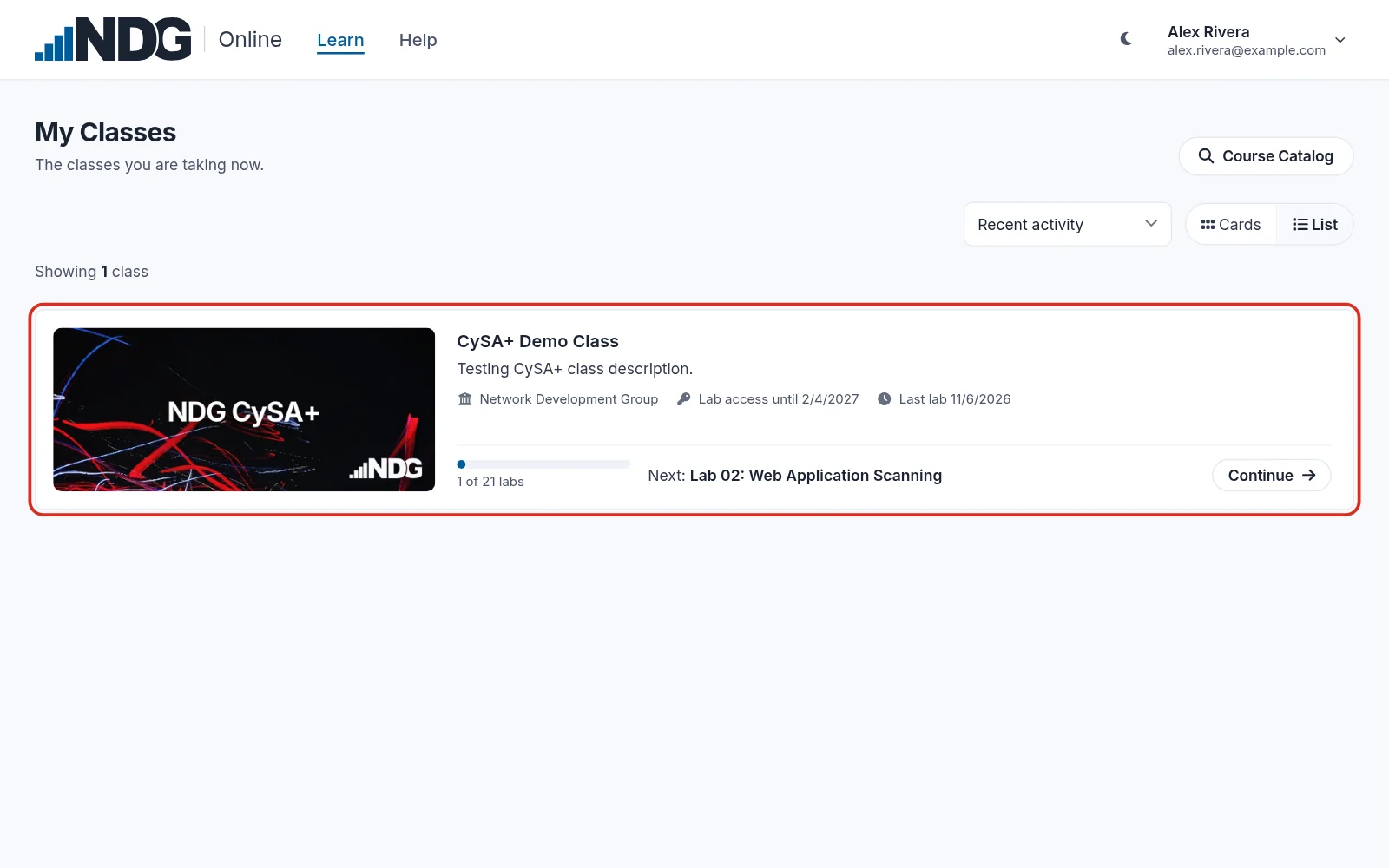
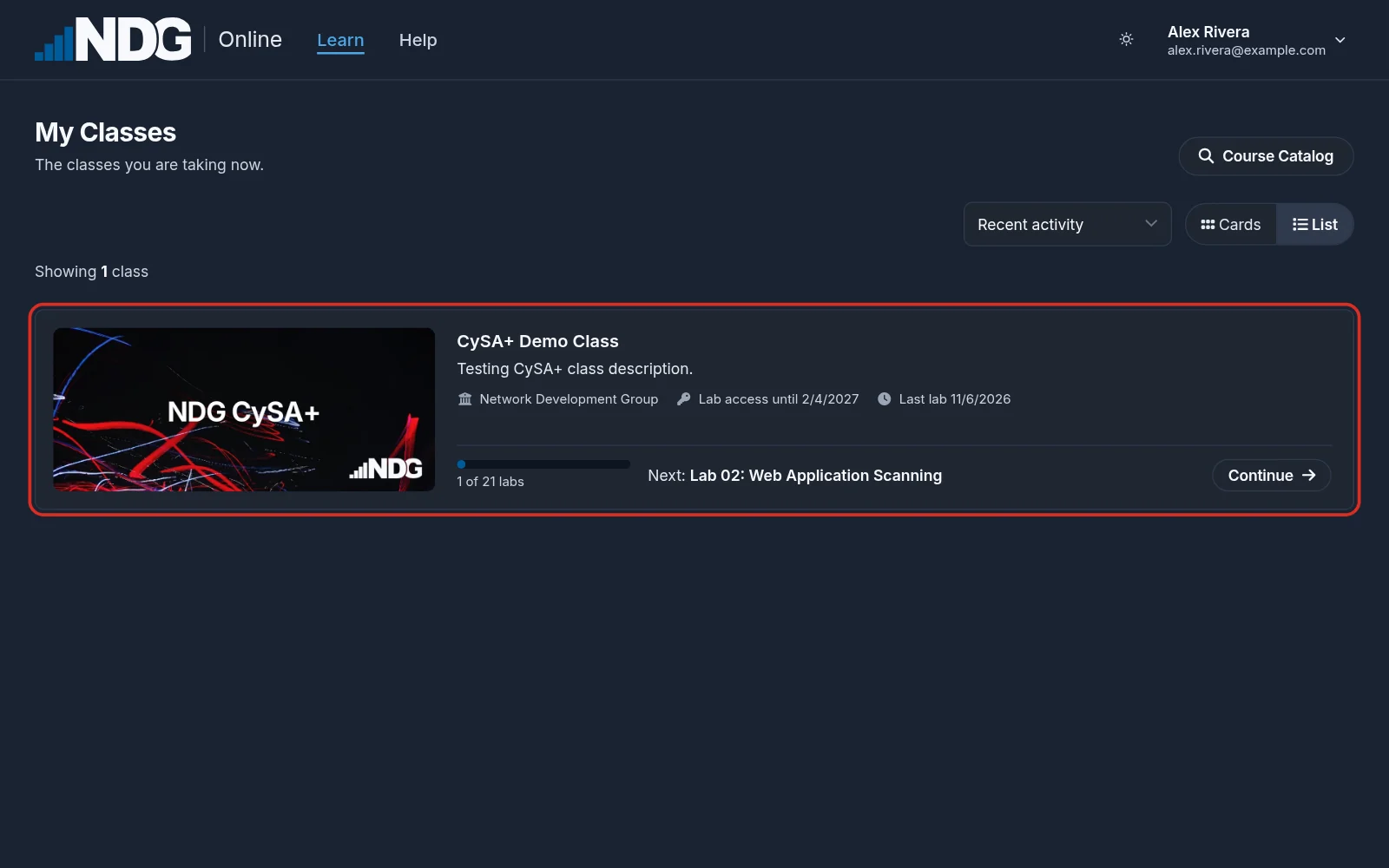
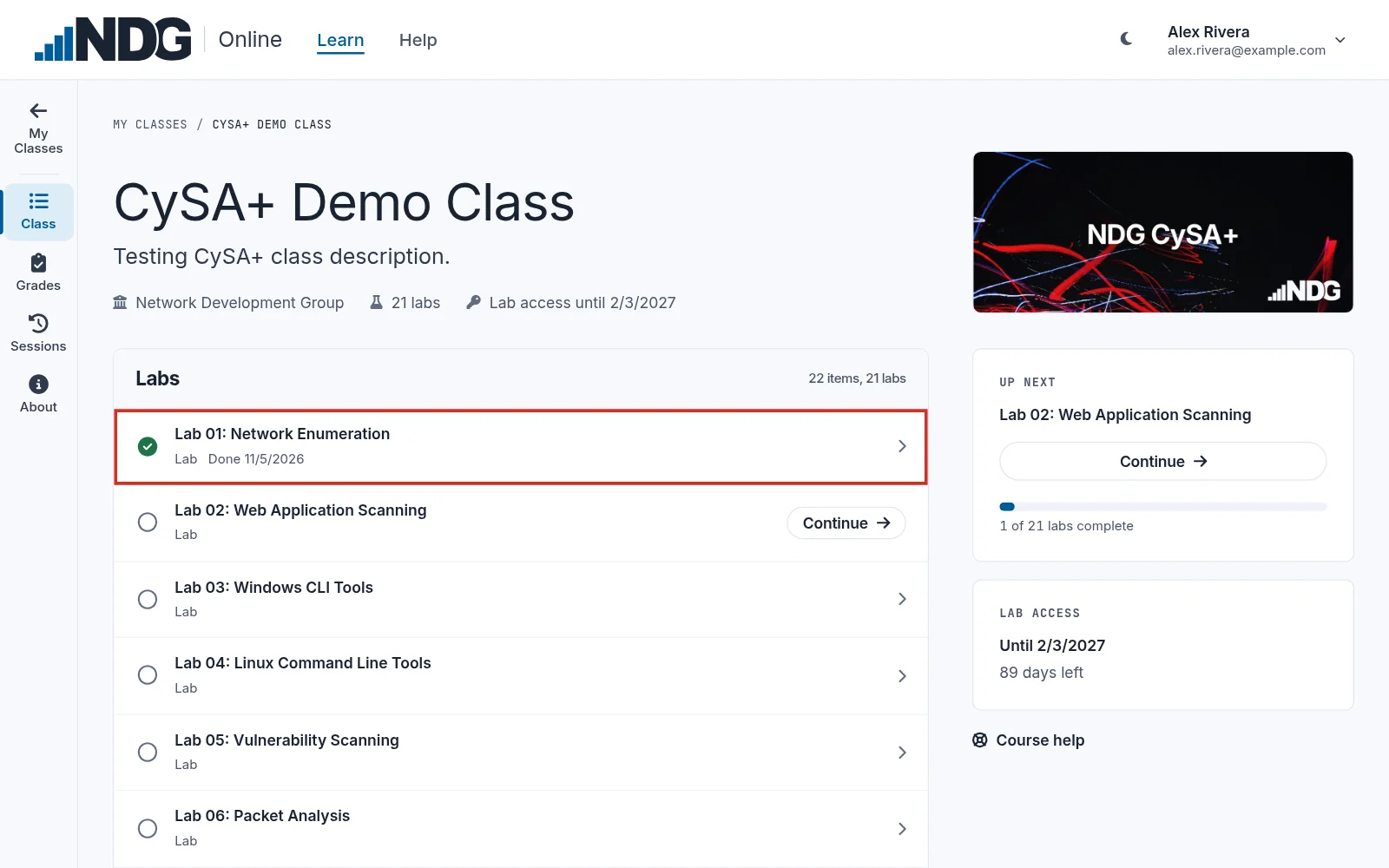
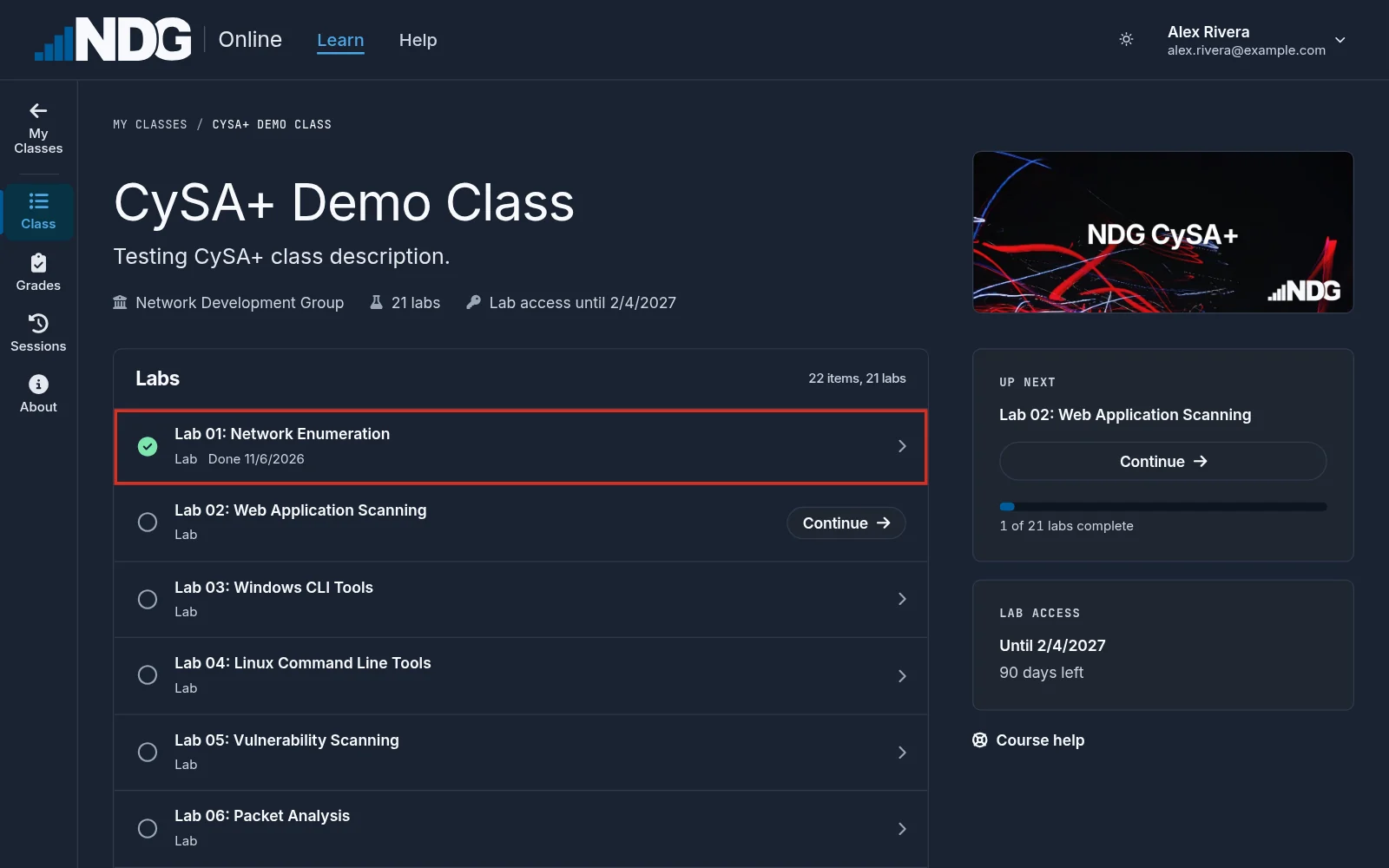
The class opens on its outline. Select a lab by its name. A lab always starts fresh, even one the outline marks Done.
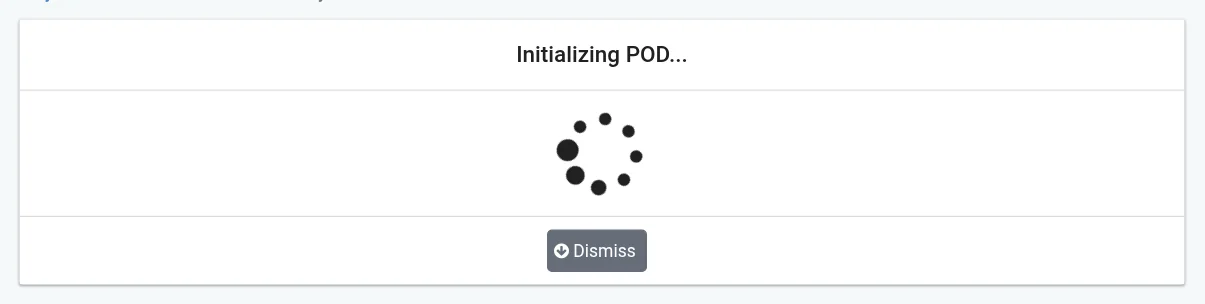
NDG Online connects to the lab environment, then shows Initializing POD while it prepares the lab's devices. The lab interface opens when initialization finishes.
The lab interface
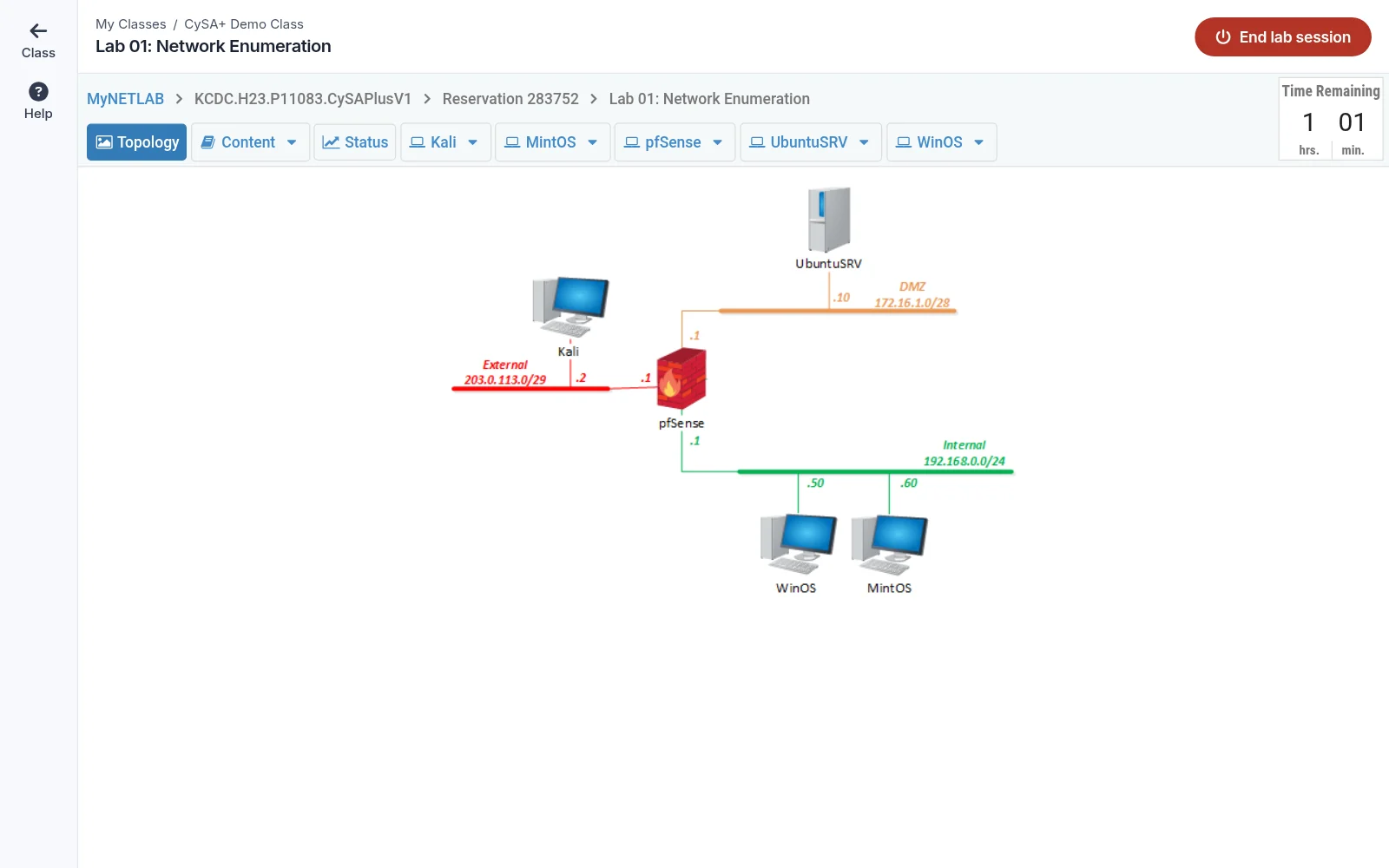
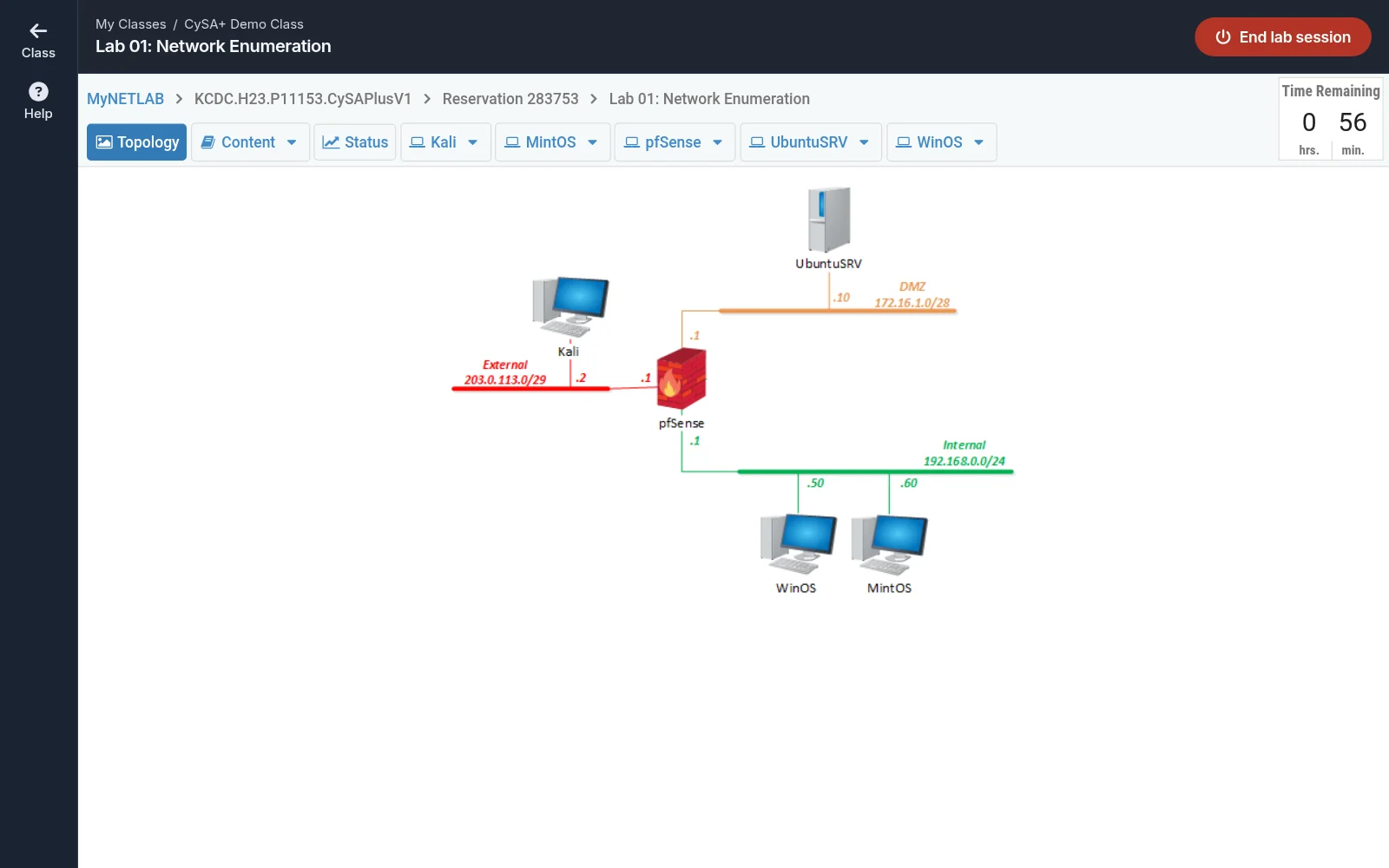
The bar at the top shows My Classes and your class's name, the lab's name, and the End lab session button. On a wide screen, the rail on the left has Class, back to the class, and Help. Below the bar, the lab interface has tabs. Topology, Content, and Status are NDG Online functions, and each device in the lab has its own tab. The devices differ by course and lab. Time Remaining is at the right.
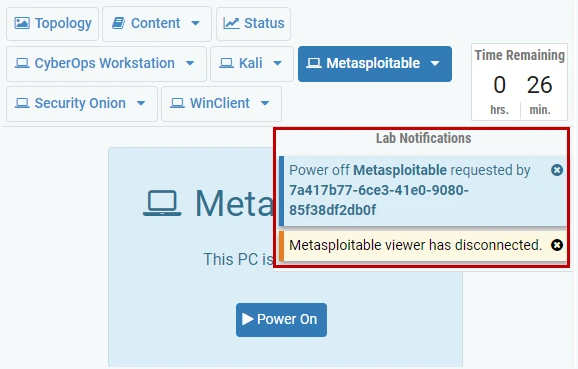
Messages about your actions appear briefly under Lab Notifications, below the time remaining.
Topology tab
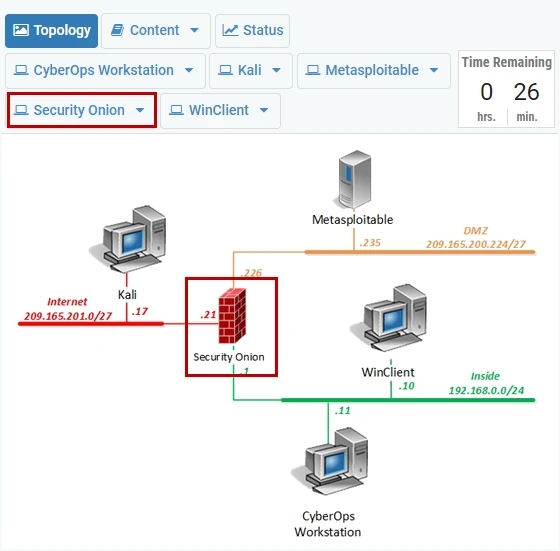
The Topology tab shows the lab's network diagram, with IP addressing and connections. Select a device in the diagram to open its tab.
Content tab
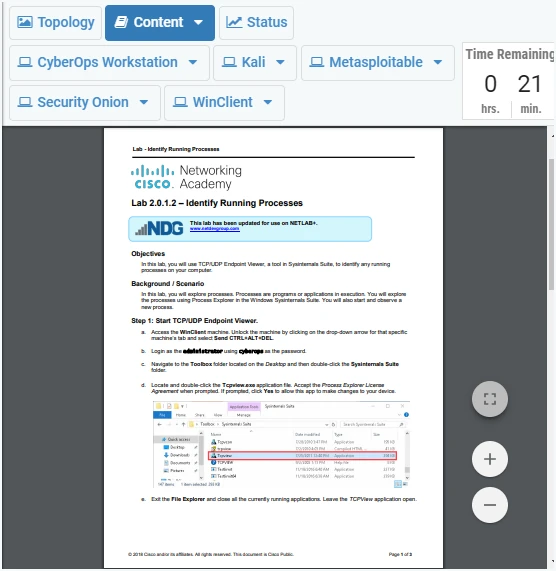
The Content tab shows the lab instructions. Use only these instructions: lab documents from outside NDG Online are not supported and are unlikely to match the lab. Red Hat Academy content is the exception.
Status tab
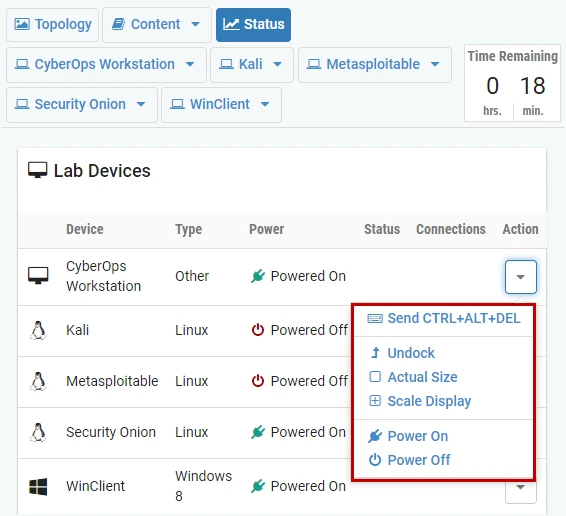
The Status tab lists every device in the lab and its state. The Action menu next to a device has the device commands.
Work with a device
Select a device in the topology diagram, or its tab, to show it in the viewer.
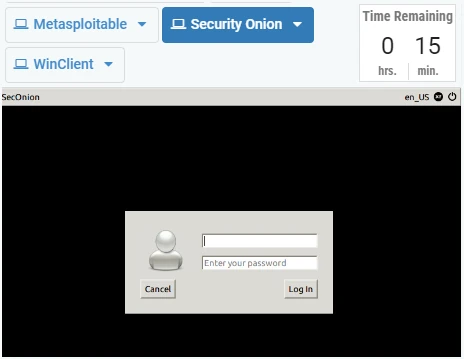
Work with the device as if you were at it: sign in with the credentials from the lab instructions and enter commands.
The arrow on the device's tab opens the same commands as the Status tab. See Virtual machine commands for what each does.
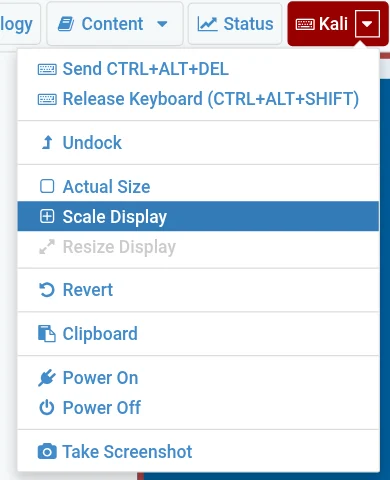
Undock and dock a device window
Undock a device to give it its own window, so you can arrange several devices side by side.
On the device's tab, open the menu and select Undock.
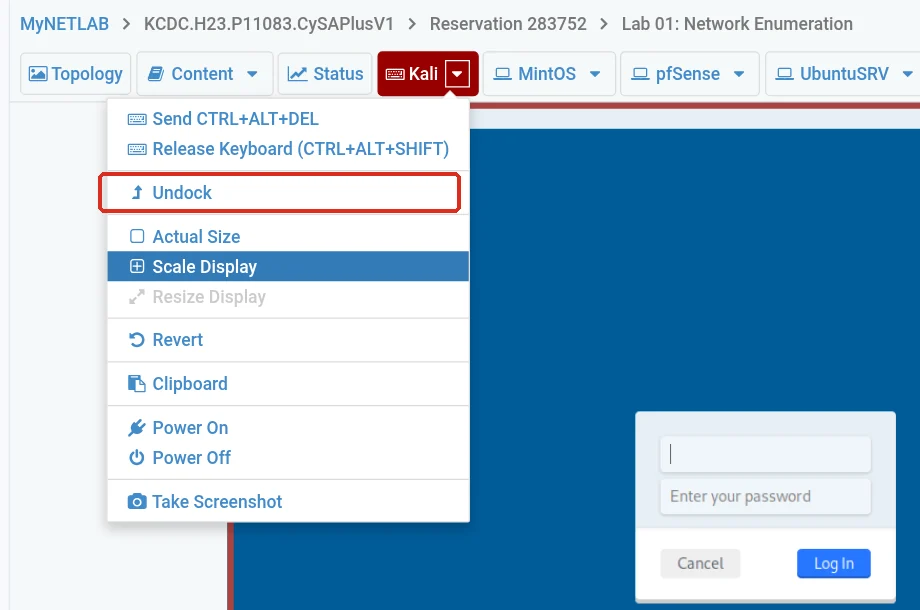
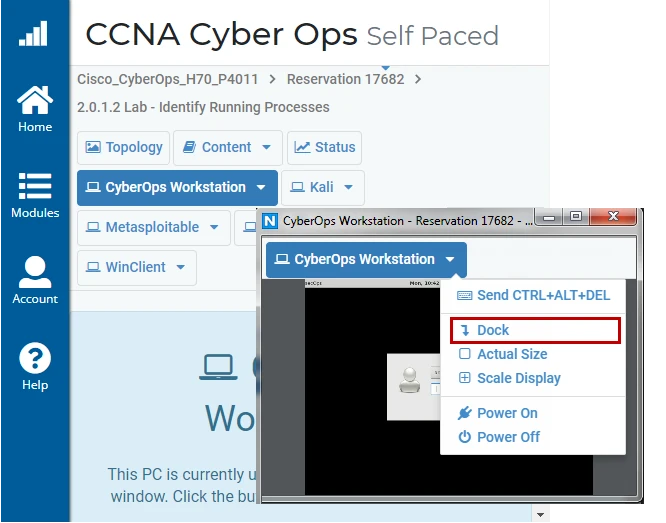
The device opens in its own window. Move and resize it as you like.
To put it back, select Dock in the device window's menu.
Switch to another lab
Select your class's name at the top left of the lab, or Class on the rail, to go back to its outline.
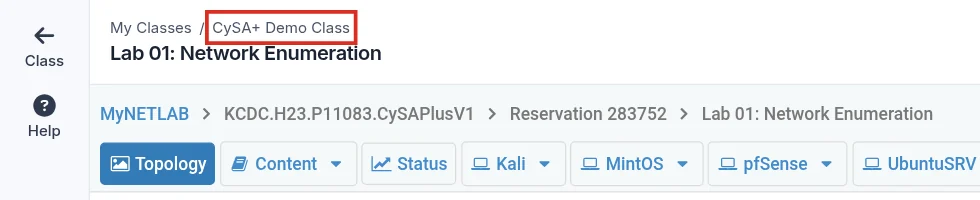
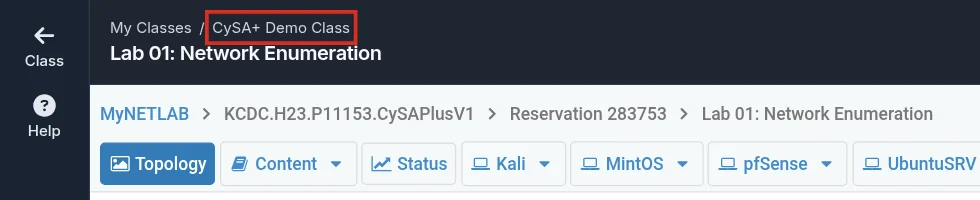
Select the next lab by its name.
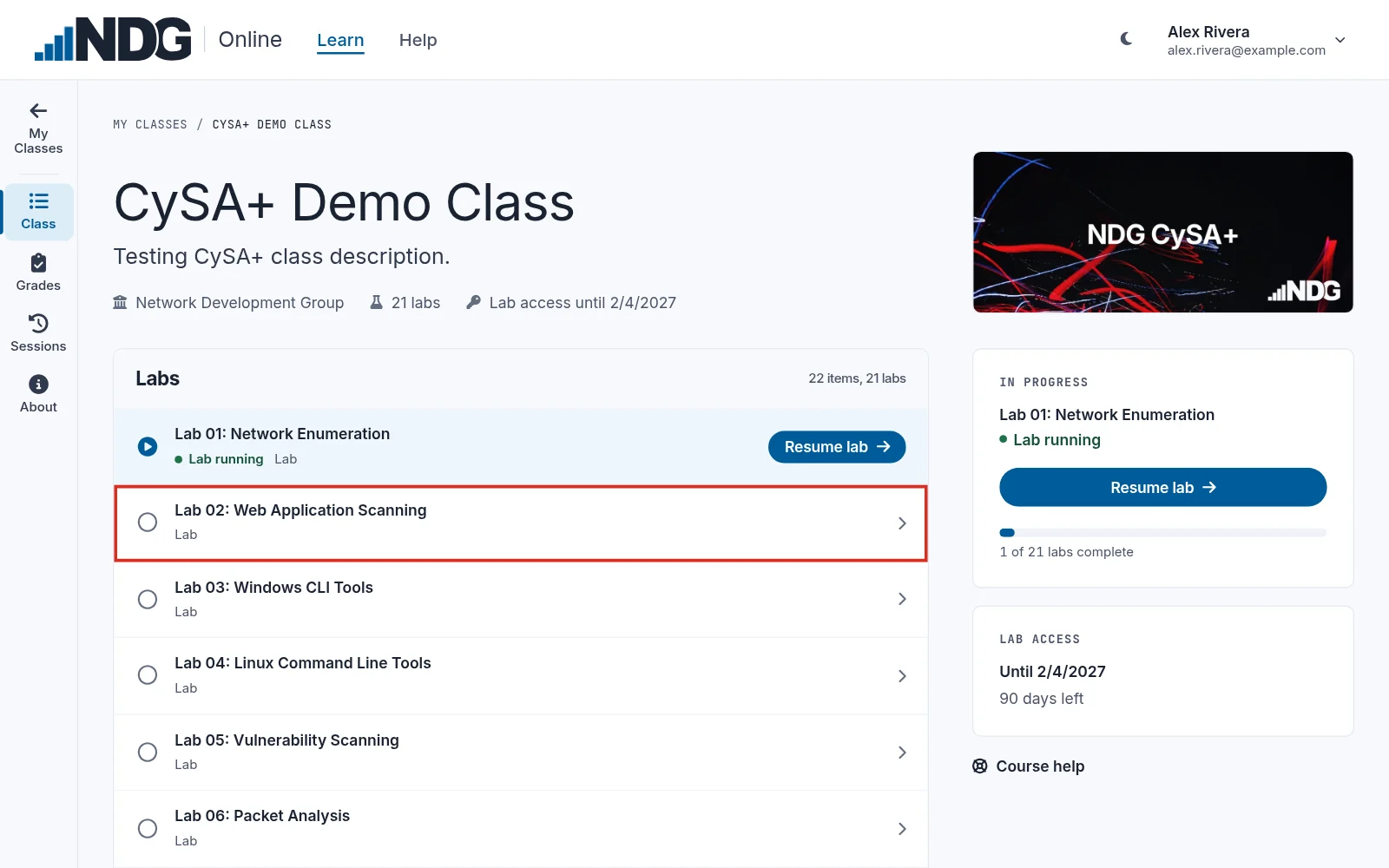
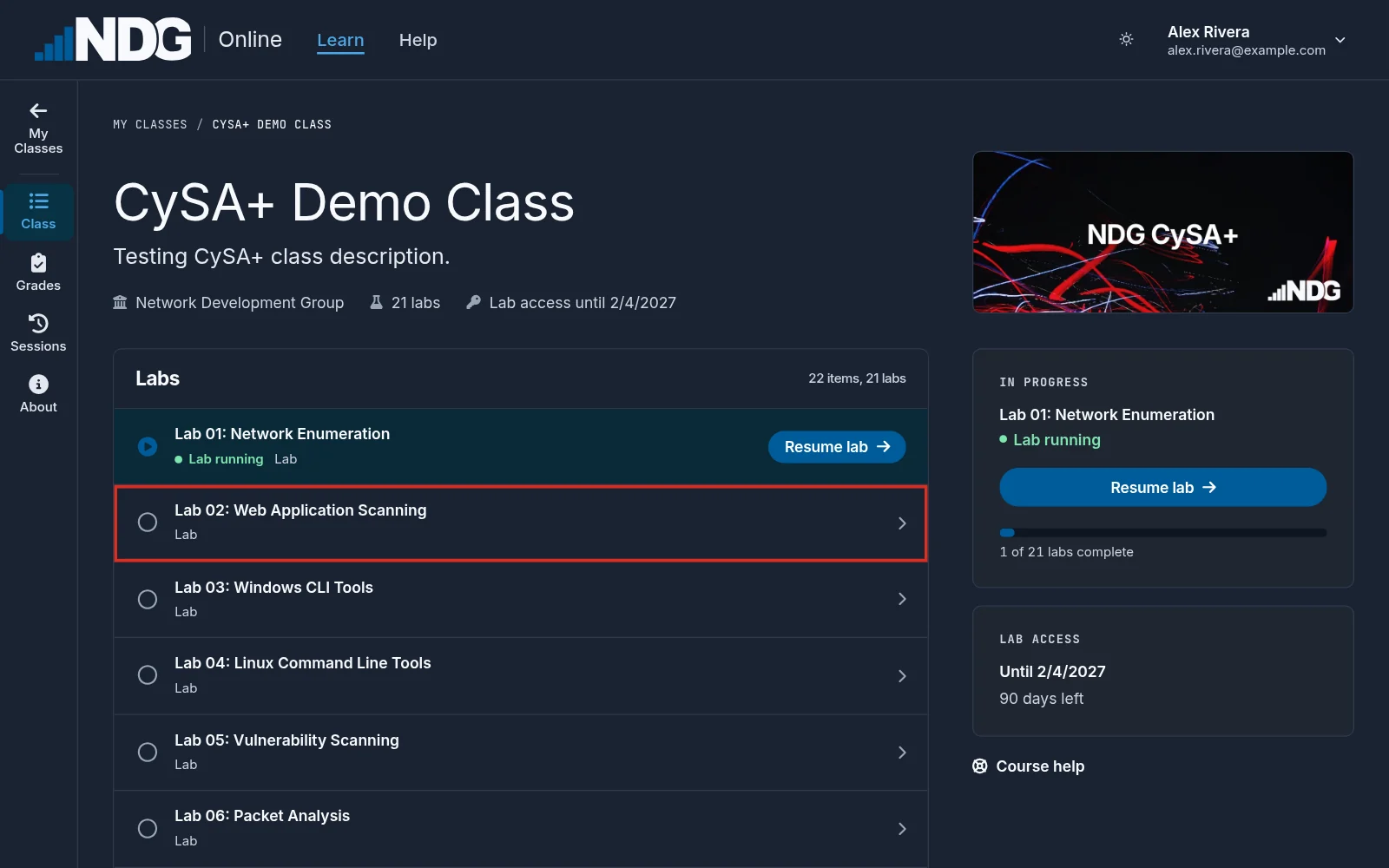
You can run one lab at a time in a class, so while your current lab is still running, NDG Online asks first. Back to returns to the running lab. End it and open ends its reservation and starts the new lab with fresh devices; anything you did in the first lab is lost. The new lab shows Initializing POD while it starts.
Finishing a lab
The class outline marks a lab Done, with the date, once you have spent at least five minutes in its machines' consoles, over one session or several. NDG Online does not issue certificates for labs. If you take the labs in a class, ask your instructor how to show your work.
To start a lab over with its devices back in their starting state, end your reservation and start the lab again. See Reservations and time remaining.
Still need help?
In NDG Online, select Help to ask the Help assistant or open a ticket. Taking labs in a class? Ask your instructor first.