Get support for NDG Online
The NDG Online support team helps with the technical side of NDG Online: enrollment, purchases, NDG Online error messages, and connecting to lab virtual machines. NDG Online has no phone support.
Contact support
From NDG Online
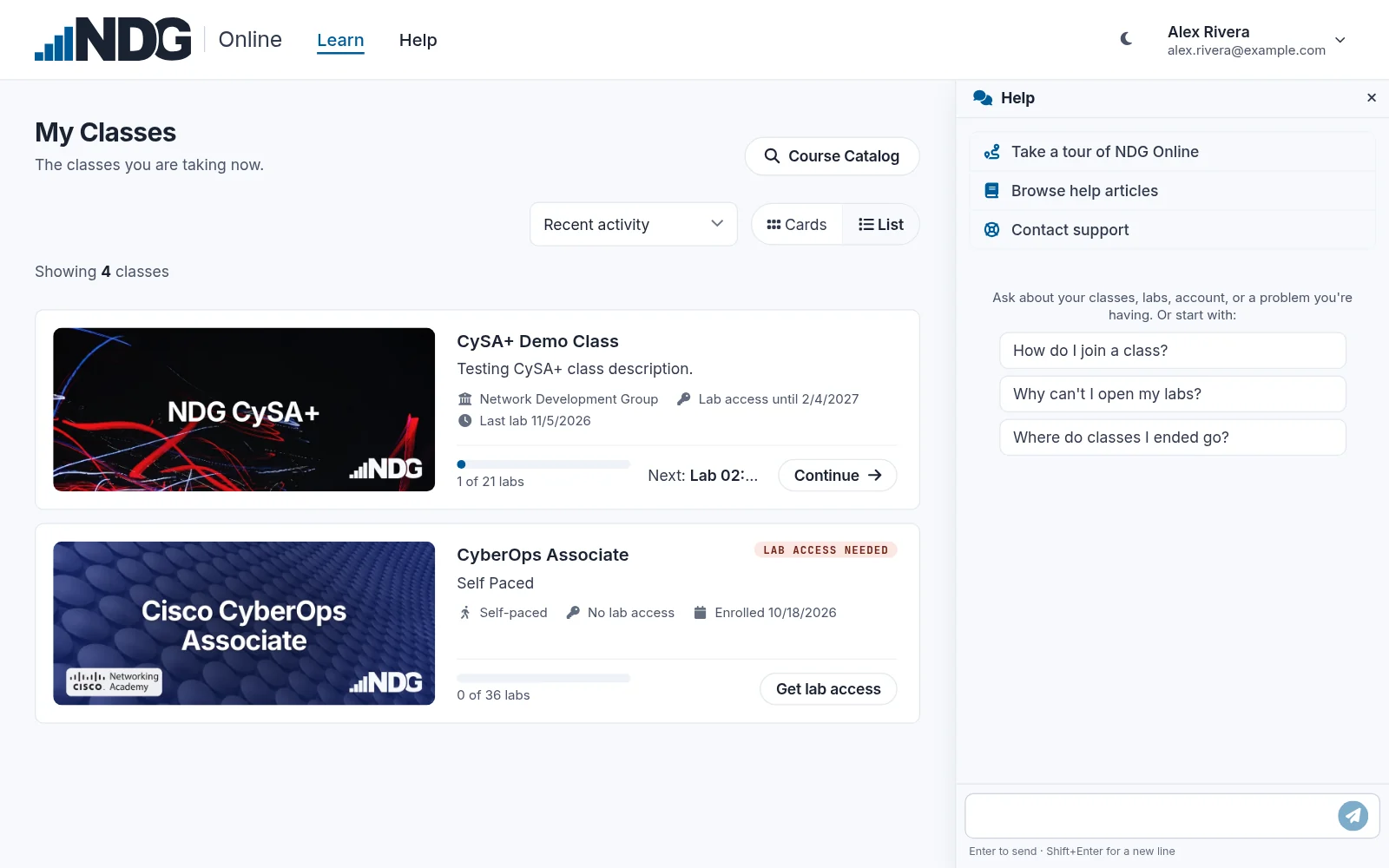
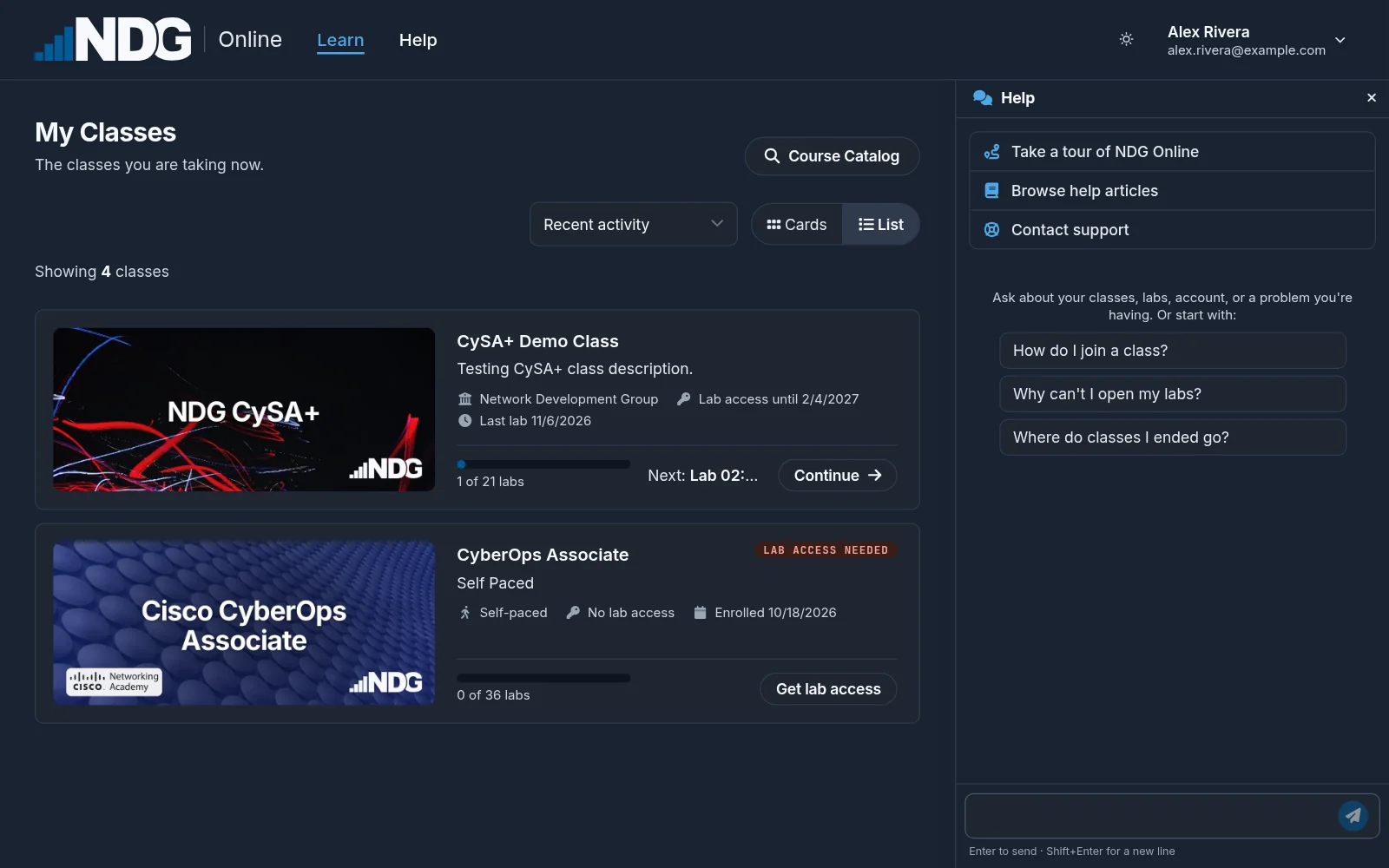
In NDG Online, select Help in the header at the top of the page (on a phone, open the menu at the top right first). The Help panel opens beside the page. Ask the assistant about your classes, labs, account, or a problem you're having. The panel also links to Browse help articles and Contact support.
Contact support asks the assistant for support in the same conversation. Tell it what's wrong, and it tries to solve the problem first. If it can't, or you'd still rather reach a person, it drafts a support ticket for you: check and edit the draft, then select Send to NDG Online Support. Nothing is sent until you do. If the assistant is offline, Contact support starts an email to NDG Online support instead.
From a lab
In the NDG Online lab view, Help on the rail at the left opens the Help panel beside the lab, with the assistant and the same links. The assistant there can see your lab, and a ticket it drafts carries the lab's details for the support team. In labs with Topology, Content, and Status tabs, Help on the left opens this help center in a new tab instead. To ask the Help assistant there, select your class's name at the top of the lab and use Help on the class page.
From a course
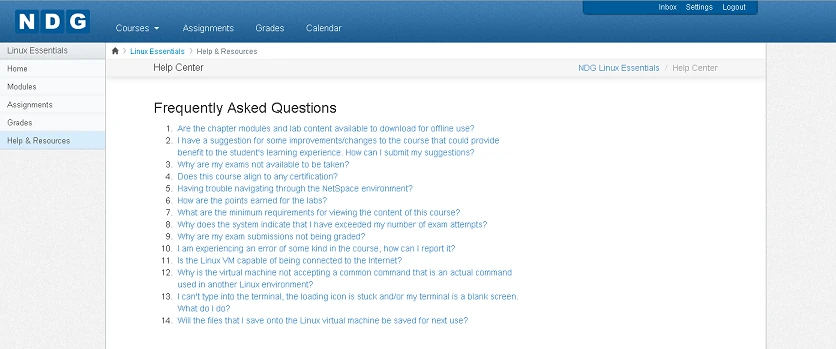
Inside a chapter or lab, select Help at the top right. The menu has Frequently Asked Questions, Submit Feedback to open a ticket, and Start Tour for a walk-through of the layout.

On the course dashboard, Help & Resources in the left sidebar has frequently asked questions and troubleshooting tips.
From the website
If you cannot use Help, send a support request from this site. Use the email address on your NDG Online account, so the team can find your account.
By email
You can also email hostedsupport@netdevgroup.com. Send it from the email address on your NDG Online account.
Open one ticket per problem. A second ticket about the same problem splits the conversation.
What to include
A ticket sent from the Help panel already includes your class, the lab and its session, and your browser. Whichever way you contact support, a one-sentence ticket rarely gives the team enough to act on. Include:
- The course or lab, and the lab step where the problem happened
- The exact error message
- What you did just before the problem, and what you have tried since
- Your browser and its version, for browser problems
- A screenshot of the whole browser window, including the address bar
Don't crop screenshots. The address bar and the rest of the window tell the team which lab environment you were using.
What support covers
NDG Online support answers questions about how NDG Online and the lab environment work. Some questions go elsewhere:
- How to do a lab step, or what an answer should be: ask your instructor. Learners working on their own research these as part of the course. If your question names a specific lab step, it is a content question.
- Grades: ask your instructor. NDG cannot see or change grades.
- Questions about a learning platform such as the Cisco Networking Academy or the Palo Alto Networks LMS: some go to that platform's support team.
- NETLAB+: NETLAB+ systems are run by your school or organization, and NDG has no access to them. Ask your instructor. These articles do not cover NETLAB+.
Instructors who can reproduce a lab that does not work as written can report it to NDG Online support.
Still need help?
In NDG Online, select Help to ask the Help assistant or open a ticket. Taking labs in a class? Ask your instructor first.